Metadata Management MCP
Overview
MetaKarta’s Metadata Management Model Context Protocol (MCP) server delivers governed metadata to external AI agents via the industry-standard Model Context Protocol. It returns the metadata evidence behind every response and respects the permissions already in place, so an agent only surfaces what its user is authorized to see.
Highlights
- Metadata Management MCP - Search governed metadata assets (lineage, catalog, governance, models) from the shared metadata repository, served to AI agents. Delivers what you can see in the UI or REST API. Ask MetaKarta consumes via this MCP server.
- Per-User Access Tokens - Generate a user-level access token to authenticate and authorize their LLM or agent against the Metadata Management MCP server. Permissions follow the individual, so agent access mirrors exactly what that person is already authorized to see.
Steps
- Connect to your third party LLM or agent and ensure that you have configured the MCP connectivity properly first.
- Once configured, you may ask any question in that third party LLM or agent and it will connect to the MCP to search governed metadata assets (lineage, catalog, governance, models) from the metadata repository.
Example
This example uses ChatGPT.
MCP Ask a Business Oriented Question
An example of the installation and MCP configuration for ChatGPT is available in the chapter on Manage > AI Providers.
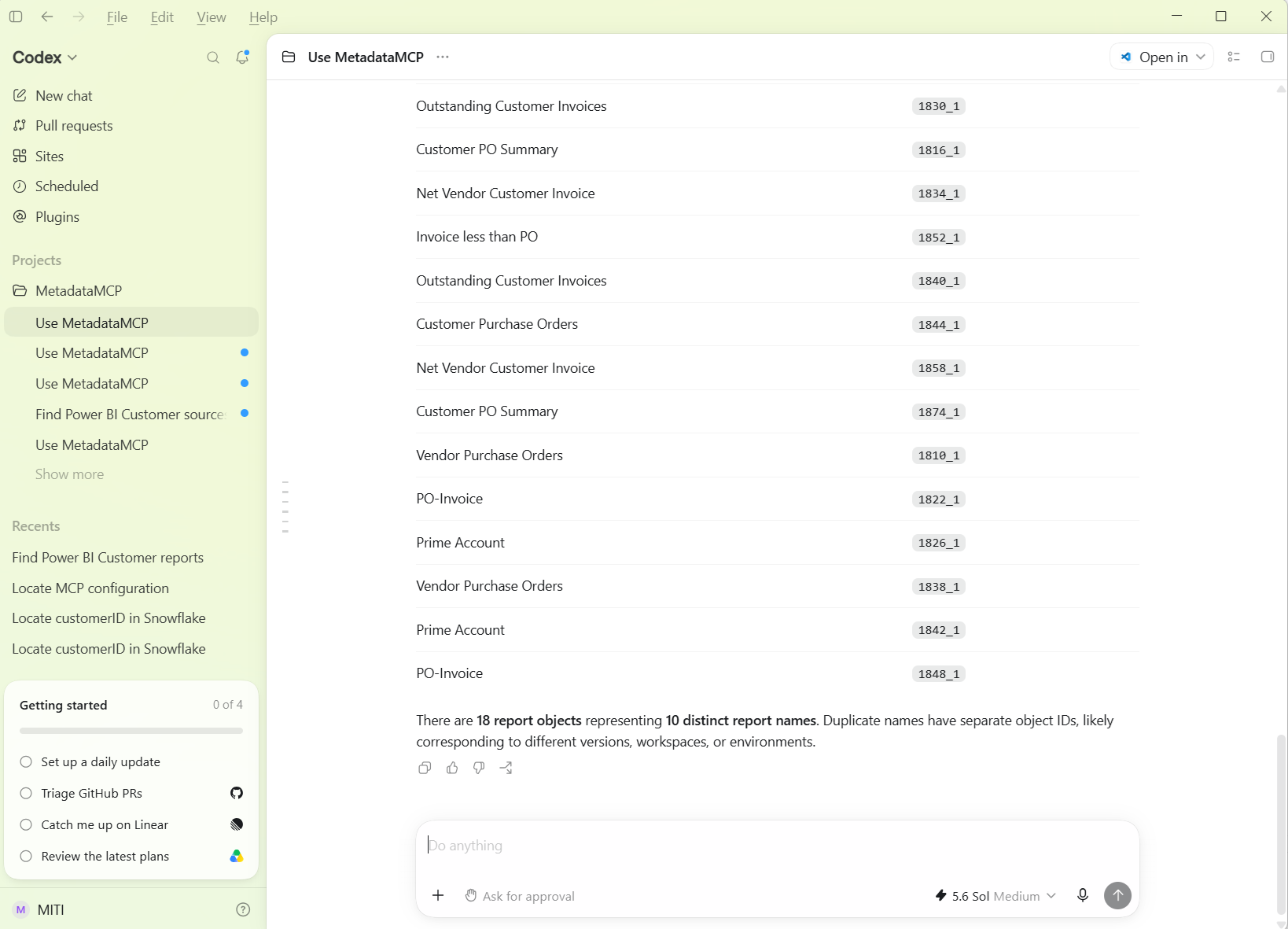
Open the third party LLM, in this case ChatGPT, then, as a new question, enter "Is there any Power BI reports sourcing from the Customer table in the Staging database?"
MCP Search with a Precise Location
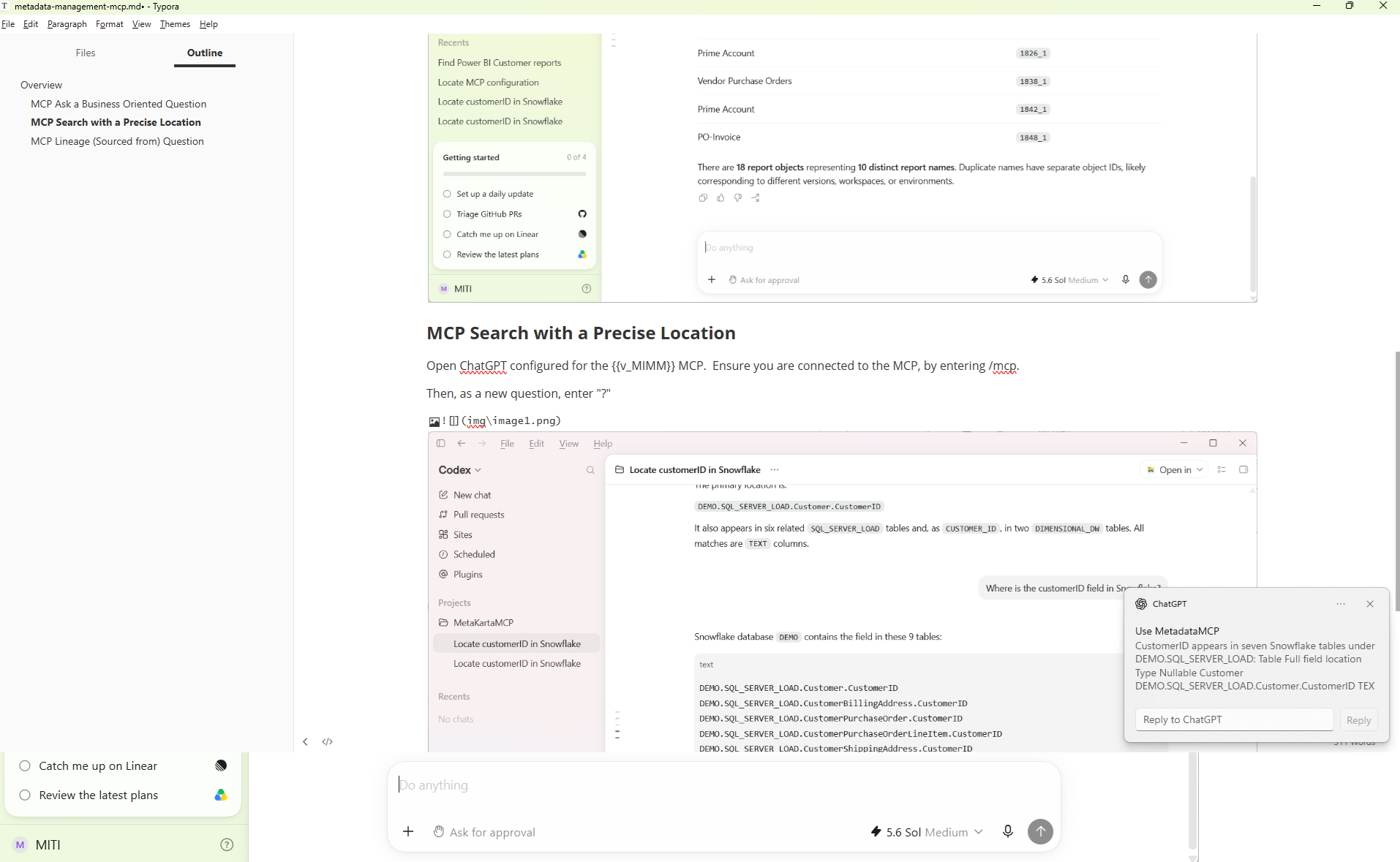
Open ChatGPT configured for the MetaKarta MCP. Ensure you are connected to the MCP, by entering /mcp.
Then, as a new question, enter "?"
MCP Lineage (Sourced from) Question
Enter the question, "Show where Customer Payment Amount in the Customer Payments worksheet in Tableau comes from in the lineage up to 2 levels".