Semantic Modeling and Reconciliation
Important Disclaimer: Some of the features detailed in this document may not apply and/or be available for the particular edition/version you are using.
Semantic Hub Modeling
- Semantic Modeling - Design semantic models visually or as code using the Semantic Model Editor, with synchronized diagram and script views.
- Semantic Model Catalog - Centrally organize, version, and govern semantic models and reusable business logic across the enterprise.
- Semantic Hub Language (SHL) - Define semantic models in YAML with an open-source language that gets compiled into native formats for multiple platforms.
- Expanded Metric Types - Build Simple, Custom, Filtered, Level of Detail, Time Offset, Window, and Ratio metrics with corresponding properties, matching the calculation types used in the BI tools you’re migrating from.
- Cloning - Create a copy of datasets, dimensions, facts, and metrics within your model, applying a prefix or suffix to all names and aliasing without recreating everything manually.
- Semantic Model Testing - Select dimensions and metrics from the model you designed and run the query against the live data source to verify the query result with the expected result, all before the model is compiled and deployed.
- Semantic Reconciliation - Compare, deduplicate, merge, and reconcile semantic models to eliminate conflicting definitions and logic.
- Expression Conversion - Automatically translate calculations and expressions between database and BI platform languages using built-in MetaKarta translation technology or AI-assisted as needed.
Edit a Semantic Model Catalog
Once you have a imported a semantic model catalog, you may edit, analyze and deploy the objects and semantic models imported.
Steps
-
Sign in as a user with at least the Metadata Management capability object role assignment on the semantic model catalog.
-
Open the semantic model catalog.
- Go to the Editor tab.
- Three buttons will appear next to the Editor tab:
- Design - Edit the objects in the semantic models
- Test - Perform queries on the data with queries using the semantic model objects
- Deploy - Forward engineer the semantic model into third party databases and business intelligence tools
Design a Semantic Model Catalog
-
Click Design next to the Editor tab.
-
Select the Database Type, e.g., Snowflake.
-
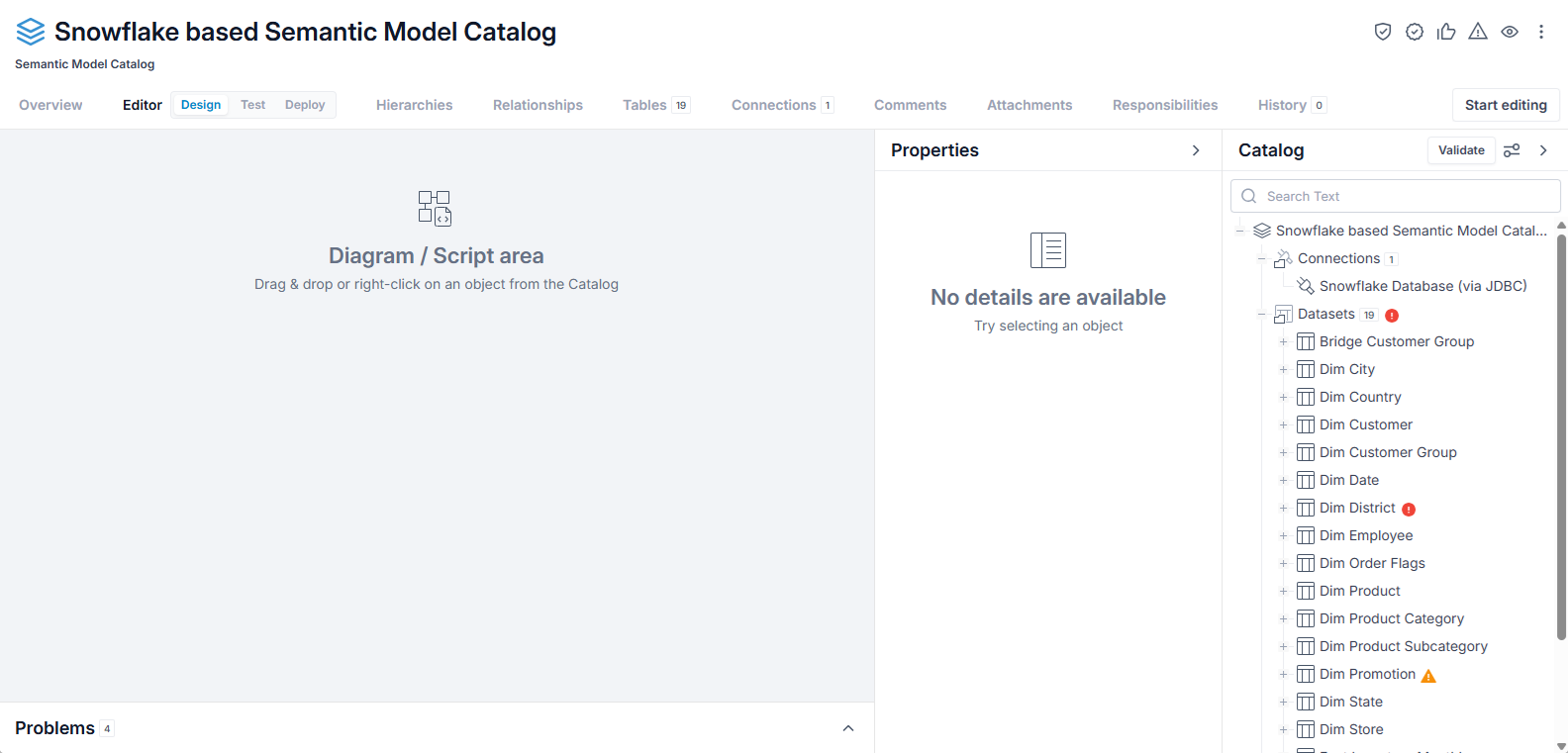
The user interface page is organized into three sections:
- Diagram / Script area - for visualization of the models' contents as a diagram or serializing/editing as a yaml script
- Properties panel - As with the Properties panel anywhere else in the product, it provides editable details for any object selected
-
Catalog panel - Hierarchical tree view of the catalogs contents, organized into Connections, Datasets, and Models.
-
There are expand and collapse controls in the upper right of the Properties and Catalog panels.
-
At the bottom of the page is a Problems area which allows you to review any issues identified, either automatically or as a result of the Validate button in the Catalog panel.
-
One may arrange the panels using the Properties control in the upper right of the Catalog panel, moving it to the left, right or center.
-
To visualize an object or model, simply drag it into the Diagram / Script area or right click and select Open Script or Open Diagram.
Before you may edit the objects, you must click Start Editing. You may also click Save to save and remain in editing mode, or Stop Editing and you will be given a chance to save. Move to another page will also result in the opportunity to save.
Example
Create a semantic model catalog and import metadata into the semantic model catalog in the current configuration.
Sign in as the Administrator user and open the semantic model catalog for the semantic model catalog which contains your model. Click the the Editor tab tab, click Design next to it.
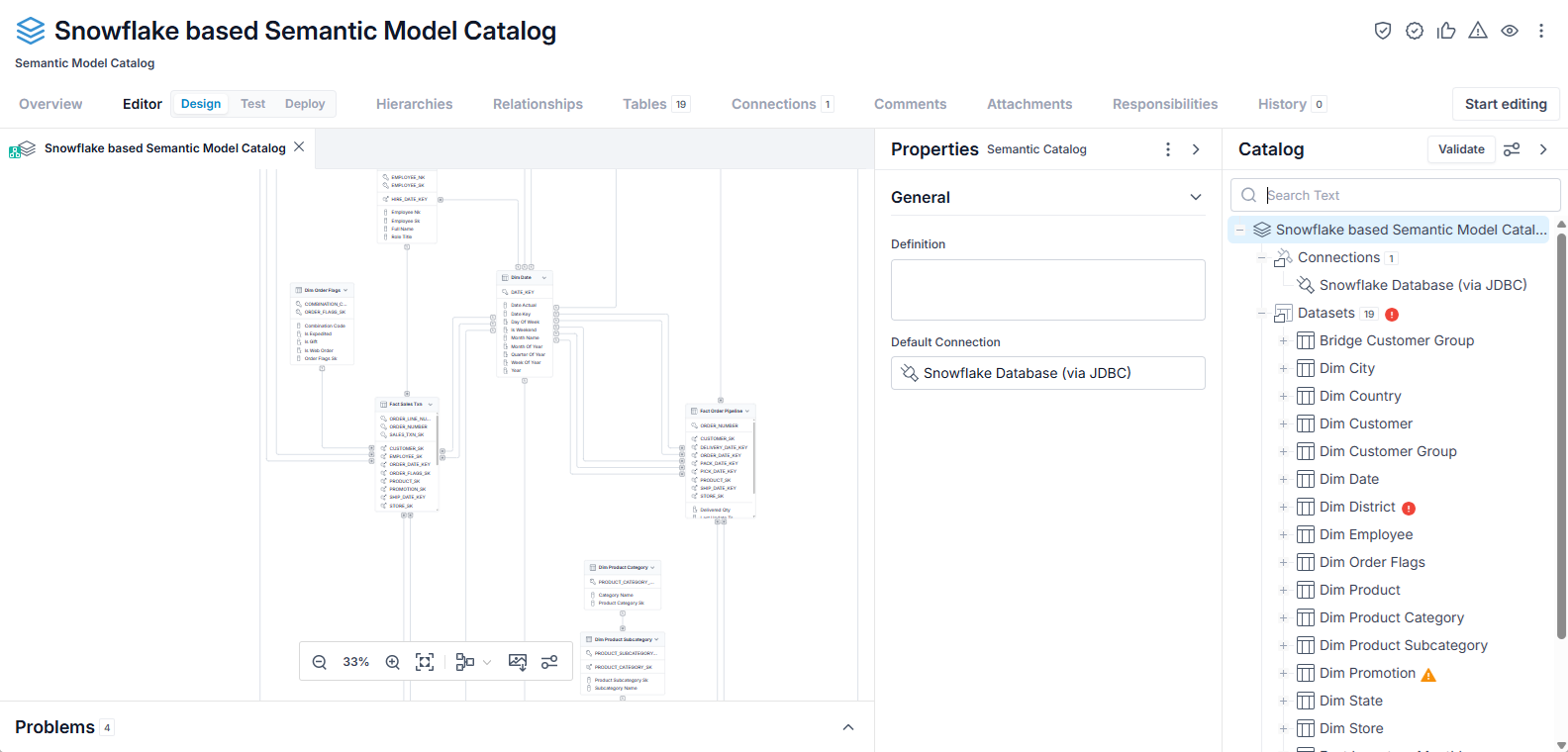
Drag the entire Snowflake based Semantic Model Catalog into the Diagram / Script area and select Open Diagram. Click to zoom in.
Validating Your Semantic Models
Expand the Problems panel at the bottom.
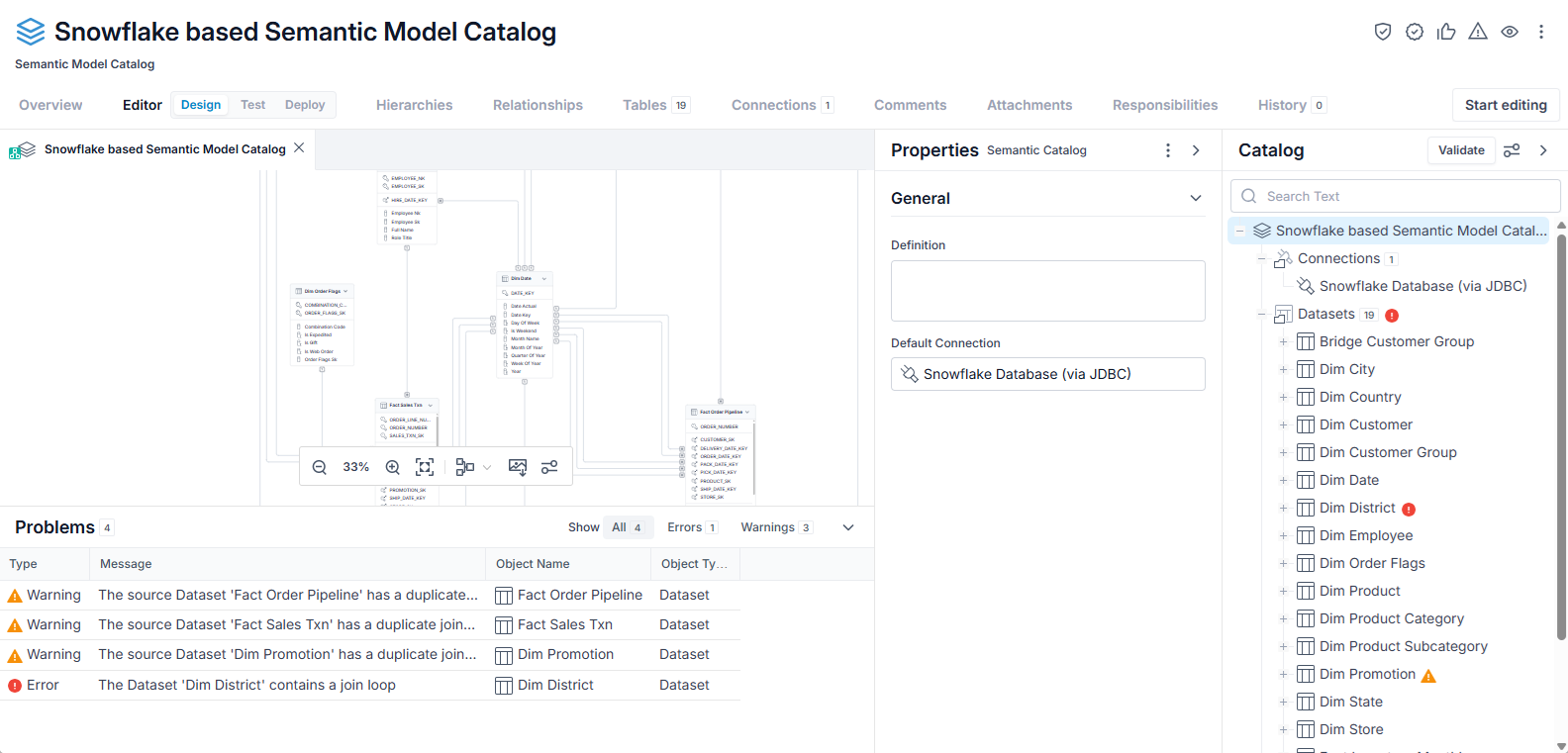
Click on the one Error.
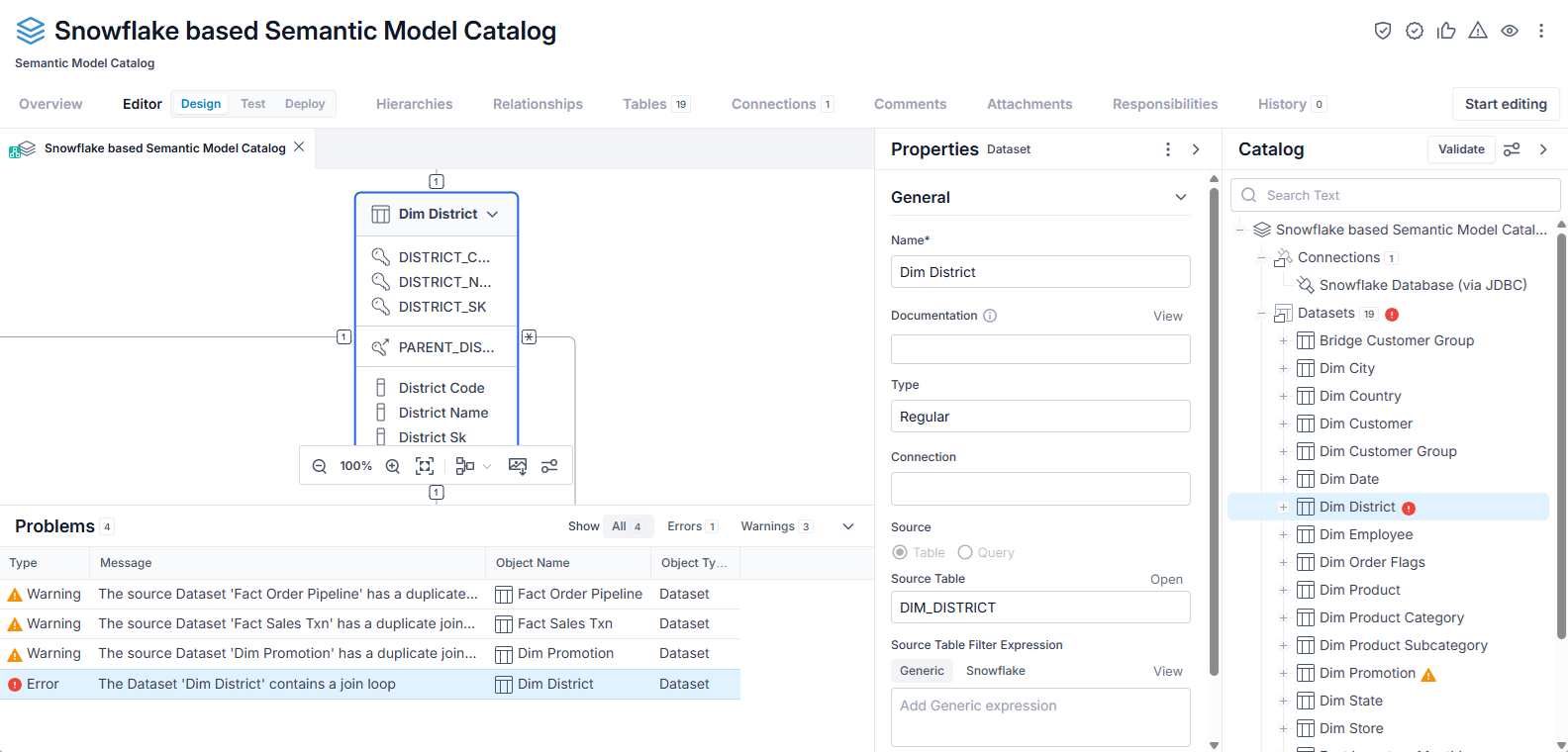
When you click on the error, all the other panels take you to the related object.
In this case, we see that the dataset Dim_District as a join to itself. It is unnecessary in this case, and we can remove it. So, click the Start Editing button, select the join and press Delete.

Click the Validate button and the error is no longer reported.
Click the Save button to save your changes.
Create a Semantic Model in the Catalog
Semantic models form the backbone in a semantic model catalog. They represent collections of self-consistent metadata objects (datasets and connections) which may be deployed to third party technology platforms.
Steps
- You should be in the Editor > Design tab in a semantic model catalog.
- Click Start Editing.
- Go to the Catalog tree and right-click the Models section and select New Model.
-
The Model will open in the Properties panel, where you may update the model properties.
-
Name - The name of the model for reference.
- Documentation - Data documentation information for the model as a whole.
- Deployments - The specific third party technologies that this model will be deployed to. It is important to specify these as the validation can use the information to identify what is required for the deployments to work. You may always add addition at a later time.
- Caching (on/off) -
- Todos -
- Annotations - additional properties to be picked up and acted upon when deploying.
Example
Sign in as the Administrator user and go to the Editor > Design tab for the semantic model catalog which contains your model. Click Start Editing and right-click the Models section and select New Model.
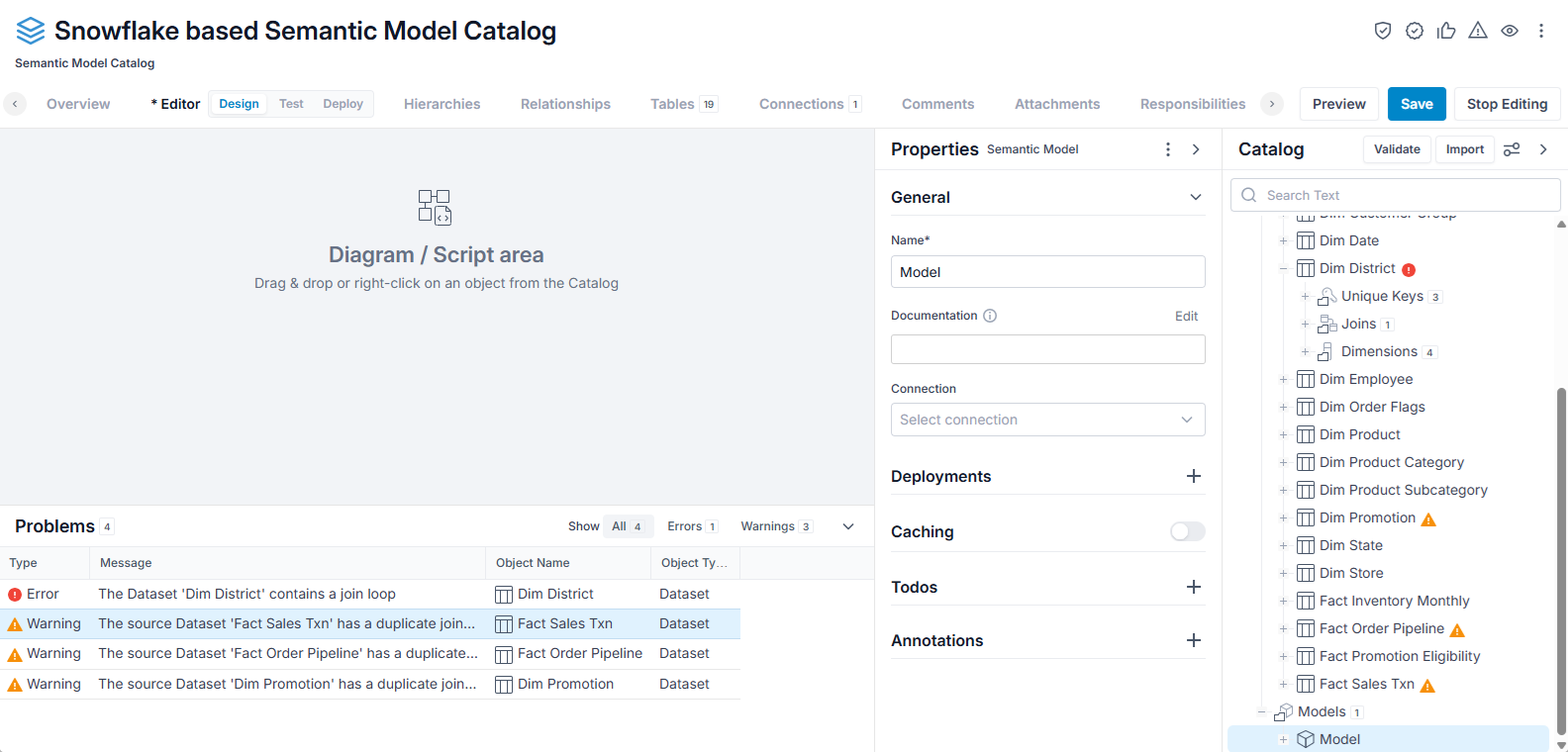
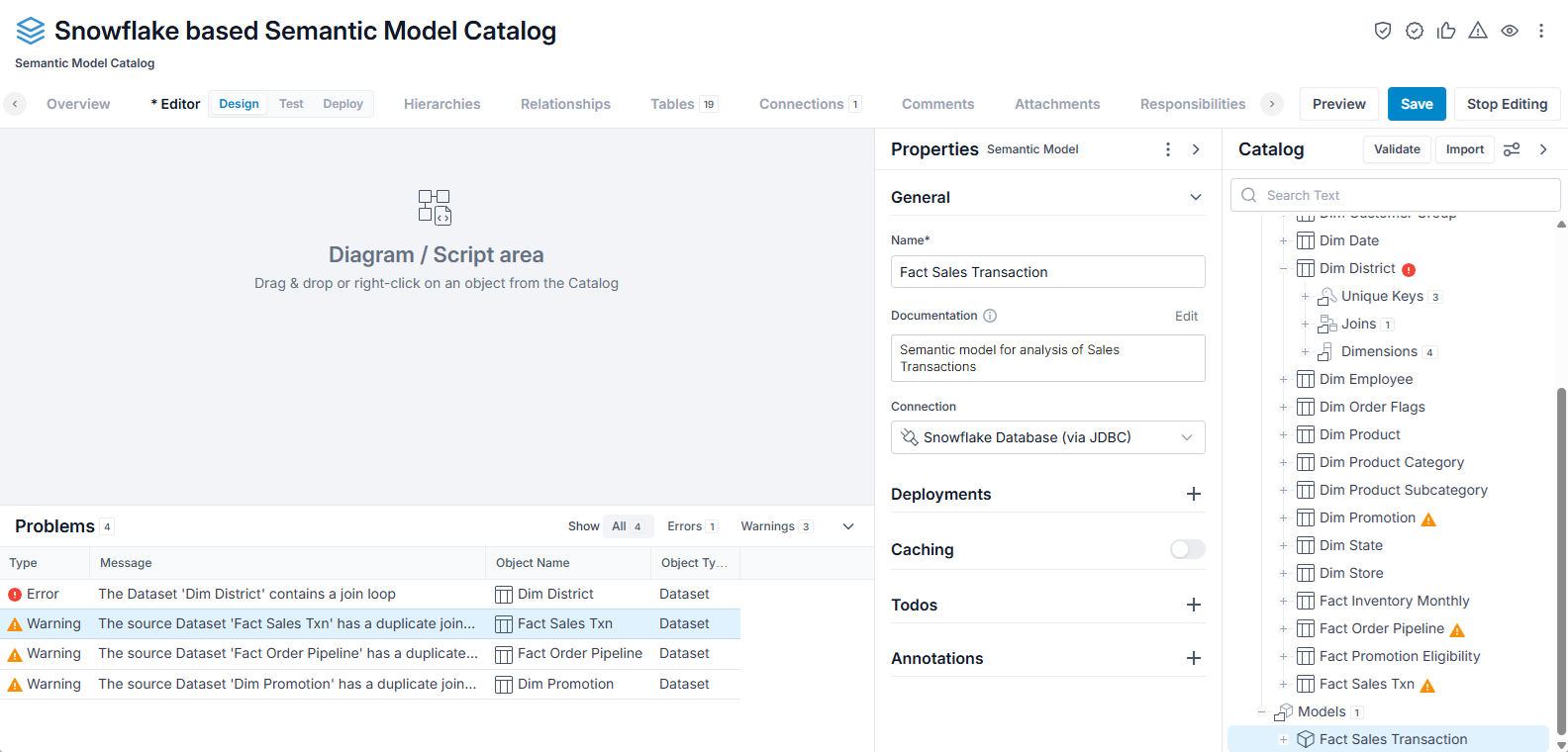
Enter the name "Fact Sales Transaction". Click Edit next the Documentation and enter "Semantic model for analysis of Sales Transactions" and click Close. Then pick the only connection (to the Snowflake db).
Design a Semantic Model in the Catalog
After creating a semantic model or importing a semantic model in a catalog, you may edit the connections and datasets included.
Steps
- You should be in the Editor > Design tab in the semantic model catalog.
- If not already created through the semantic model catalog import process, you should create a semantic model.
- Go to the Catalog tree and right-click the Root Dataset section under the model name and select New Root Dataset.
- Select one of the datasets in the catalog and click OK.
- You may Exclude specific Metrics, Dimensions and Hierarchies from the resulting semantic model by filtering them out of what is in the catalog and also related to the root dataset.
Example
Sign in as the Administrator user and go to the Editor > Design tab for the semantic model catalog which contains your model. Click Start Editing, go to the Catalog tree and right-click the Root Dataset section under the model name and select New Root Dataset.
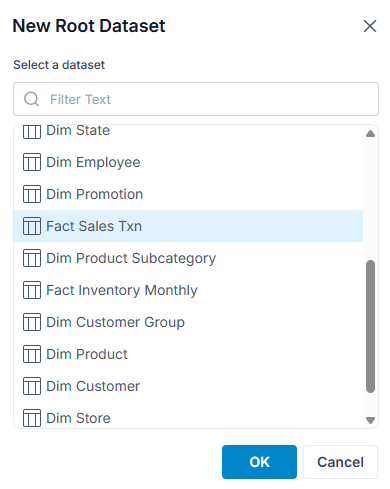
Select the Fact Sales Txn dataset and click OK.
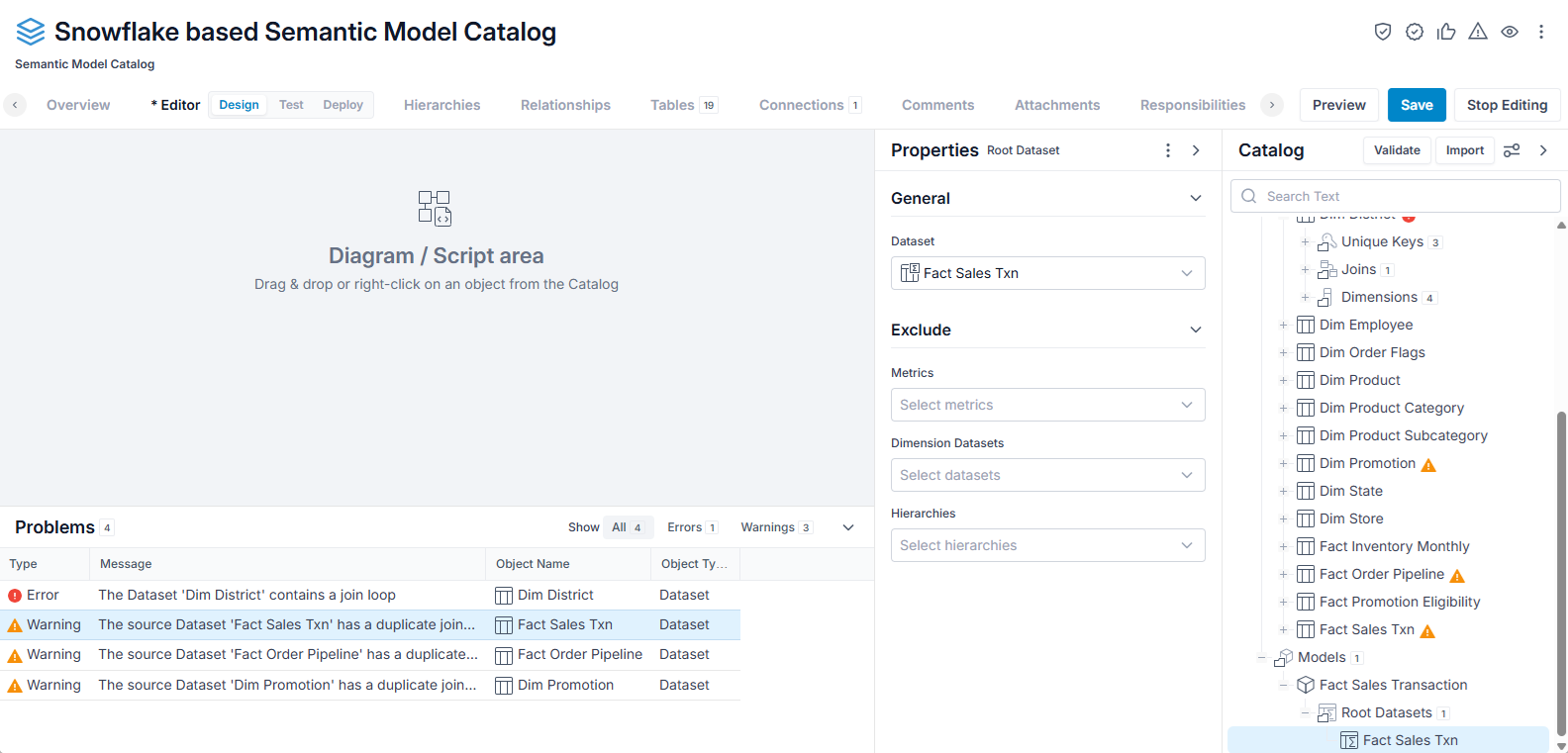
Drag the model into the Diagram / Script area, select Open Diagram and zoom in.
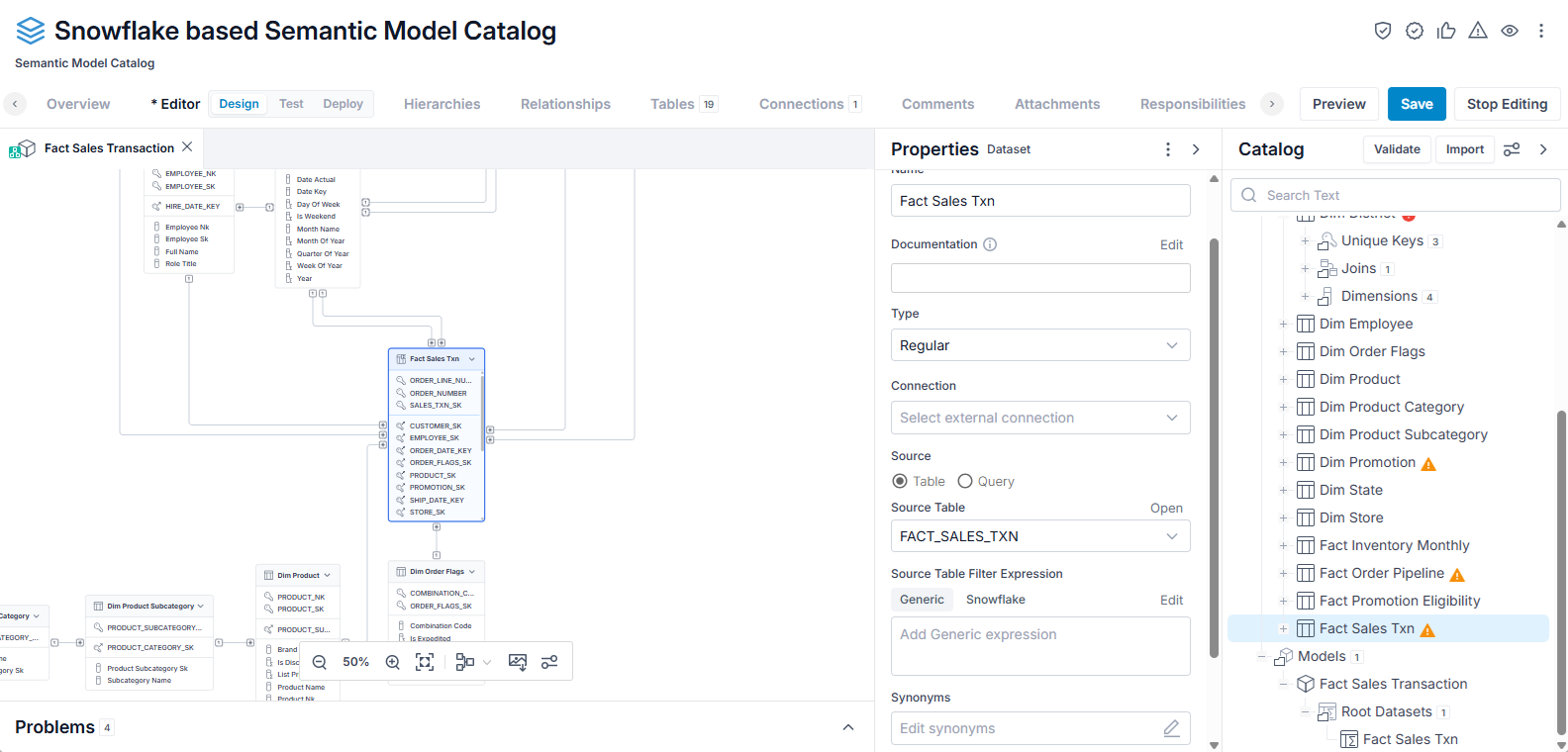
We see the related datasets brought into the model.
Semantic Hub Language
The MetaKarta Semantic Layer allows you to define Semantic Catalog models using YAML, UI, or import them from BI tools. Together, they complement each other.
- Productive UI: MM provides an interactive, visual environment for designing and managing semantic models, allowing users to quickly create tables, relationships, hierarchies, metrics, and KPIs without deep technical knowledge of the underlying model definition. It excels at rapid prototyping, immediate validation of Expression logic, and integrating with live datasets for instant feedback, making it ideal for business analysts and model developers who prefer a visual workflow.
- Embrace Code-First and Version Control: Modern data engineering emphasizes defining data assets and logic through code. MM supports the definition and enrichment of semantic models using a text-based, human-readable YAML representation that enables version control, bulk editing, and automated generation or transformation of model definitions. The strengths of the code-based approach lie in collaborative development, DevOps integration (Git-based CI/CD pipelines), and the ability to apply consistent modeling patterns across projects through reusable templates and scripts.
- Automatic Import: MM is a metadata integration solution that allows you to import semantic layer designs from BI and DB tools.
The YAML presentation is always available as an alternative to the graphical design UI.
View and Edit the Semantic Model Catalog YAML
Go to the Editor > Design tab, drag the model catalog (root of the Catalog tree) into the Diagram / Script area, select Open Script.
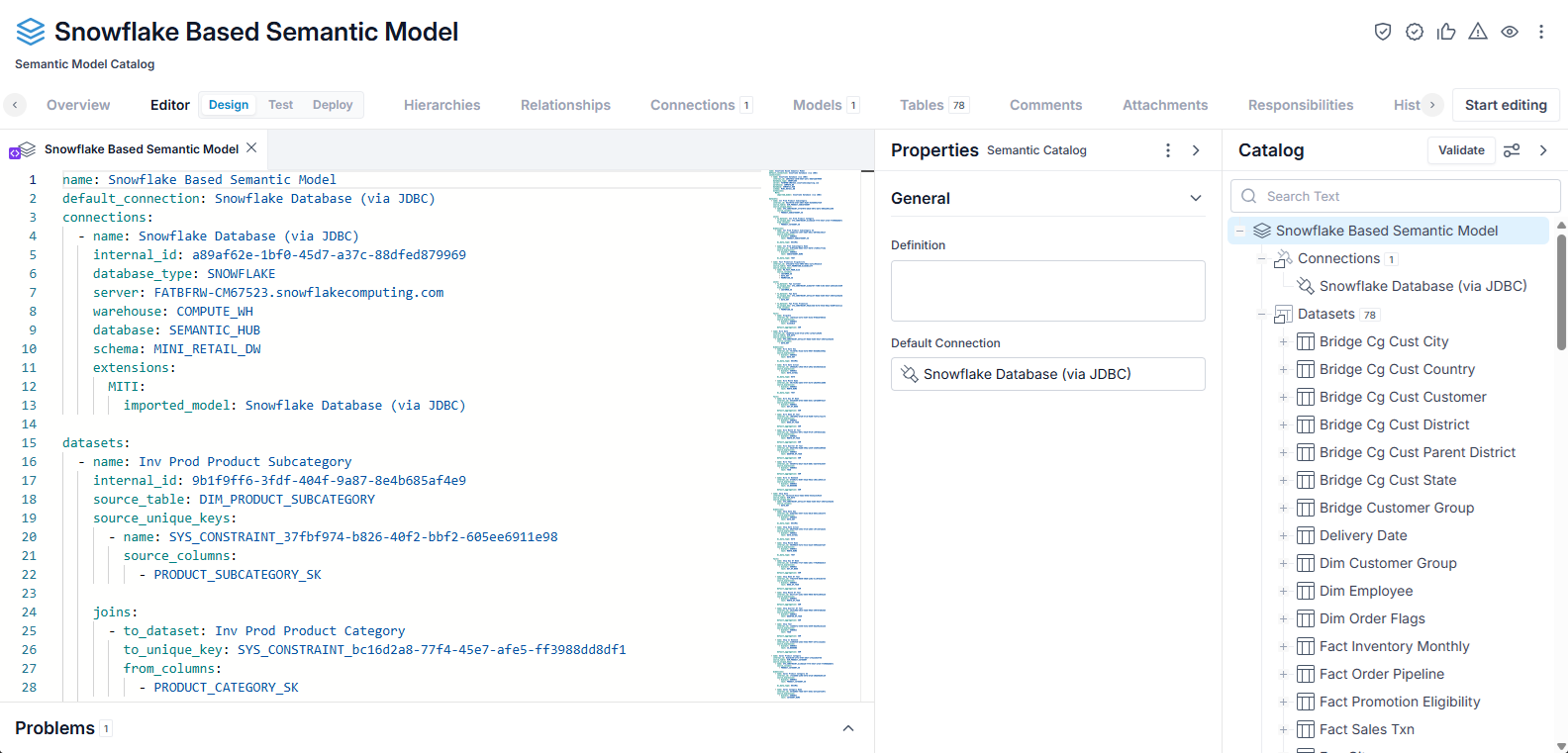
Open an Object in the Model Catalog as a YAML Script
The script serializes the entire model catalog.
You may jump to the the Catalog panel objects and the script.
Right-click the object in the Catalog panel and select Open Script.
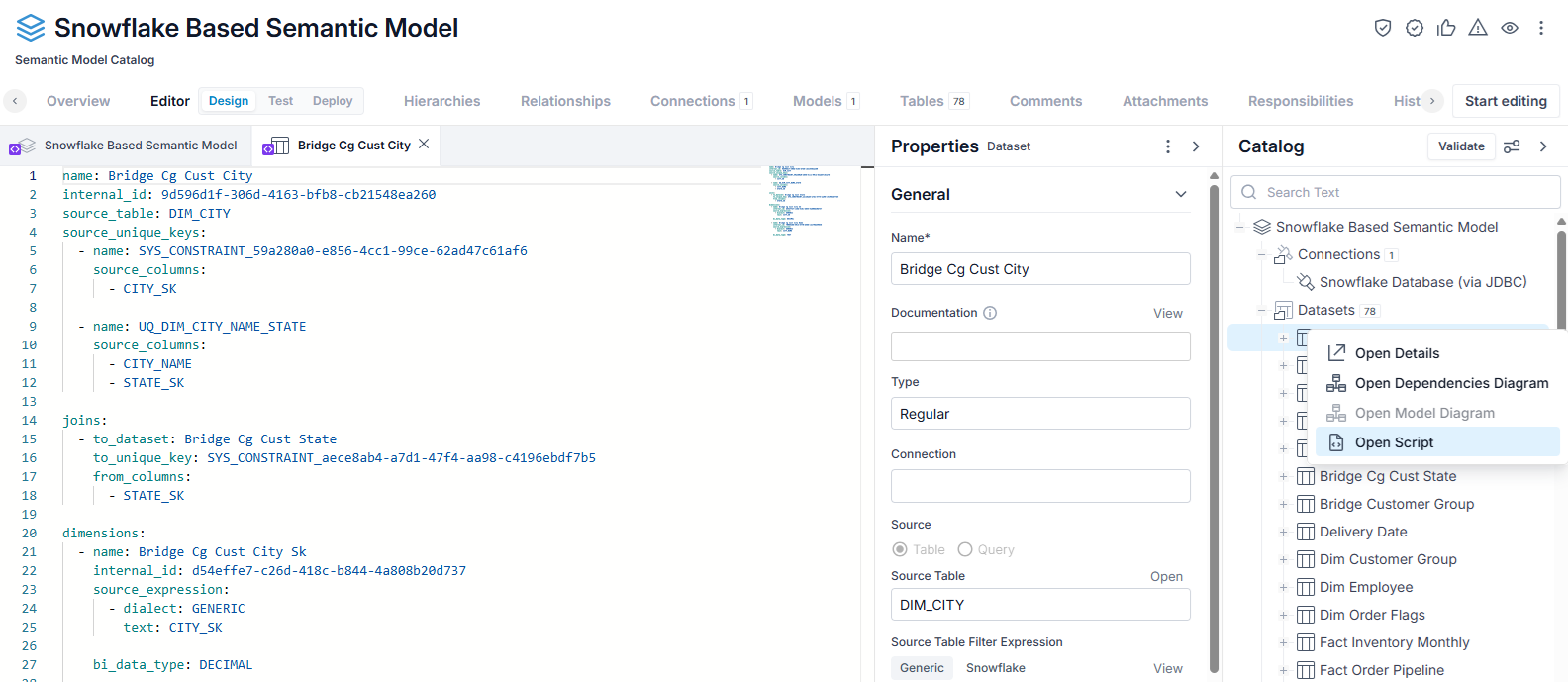
Edit the Model Catalog object in the Script
Now to edit the name in the script, click the Start Editing button, either use the Find (CTRL-f) in the Script area or open an object in the model catalog as a script.
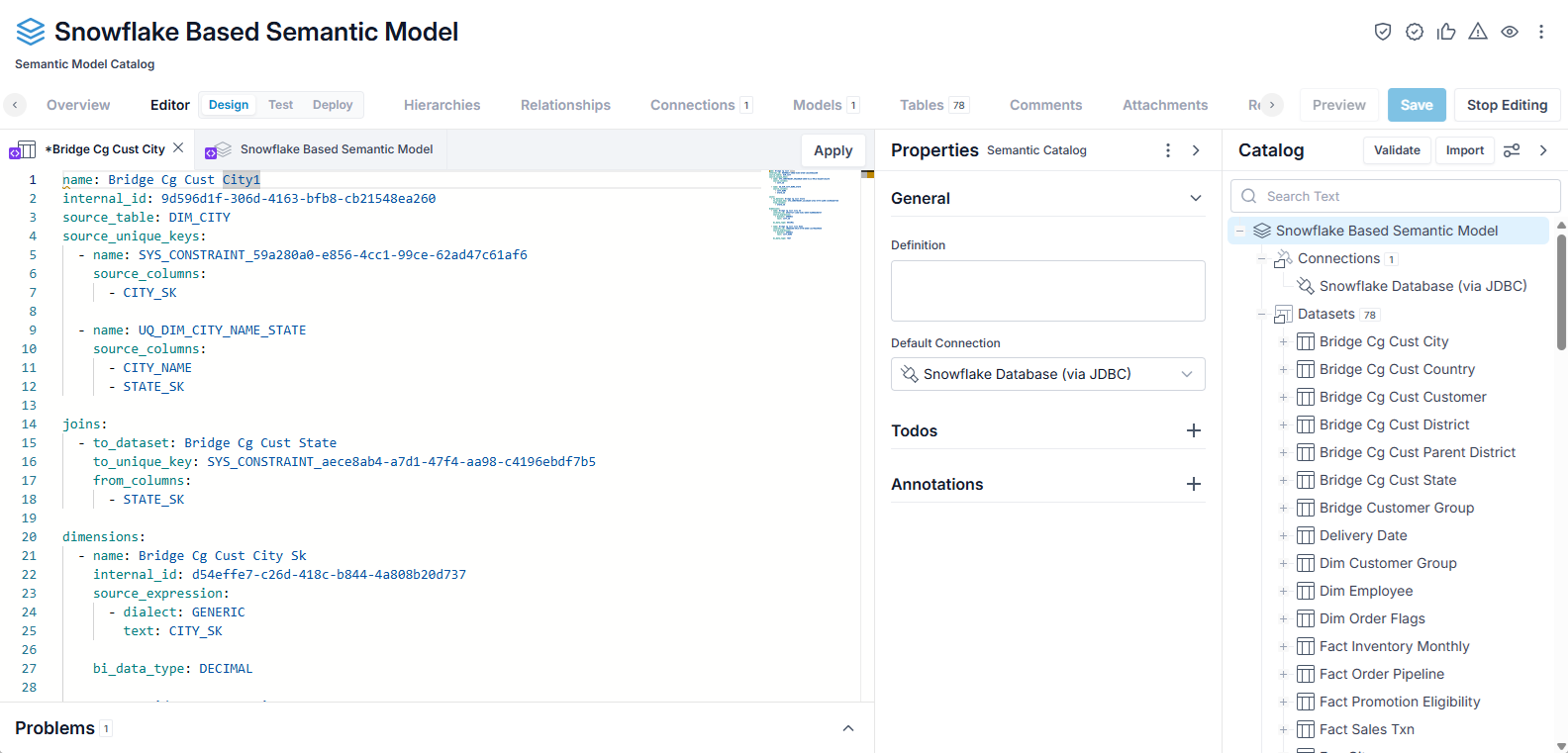
Then click the Apply button, click Stope Editing and save.
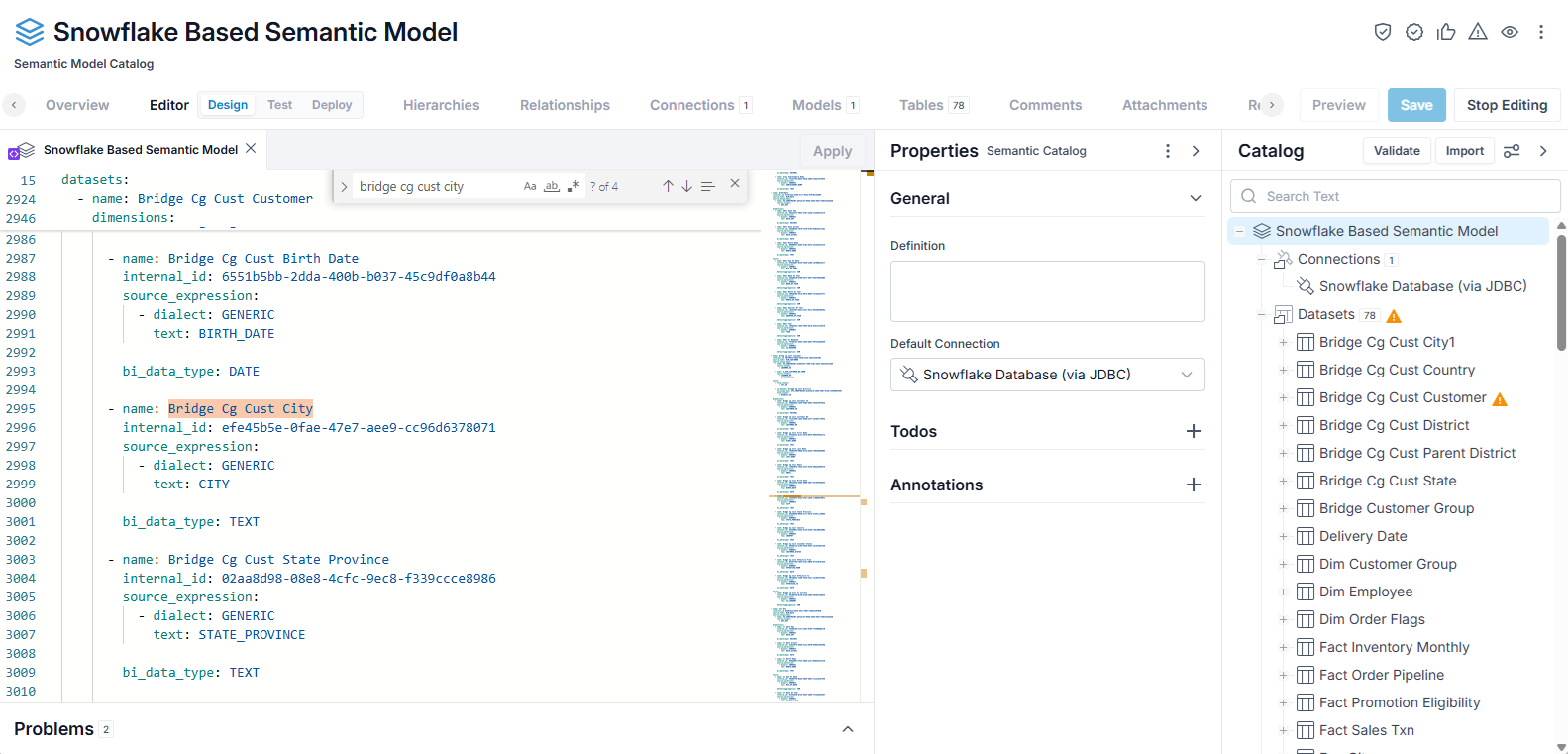
The object name is now properly updated in the Catalog tree.
Export YAML Script from a Semantic Model Catalog
You may export an existing semantic model catalog to YAML script format.
Steps
- From the More actions menu, select Export to YAML.
- Open the operations icon in the header and open the export operation.
- Click the download Operation Files button and specify a file name and location and click Save.
Example
Sign in as the Administrator user and open the Snowflake Based Semantic Model Catalog.
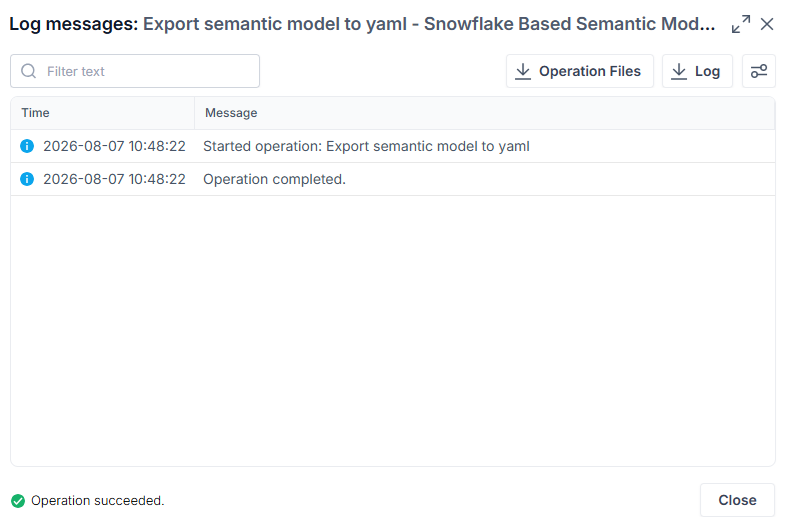
From the More actions menu, select Export to YAML. When completed, open the operations icon in the header and open the export operation.
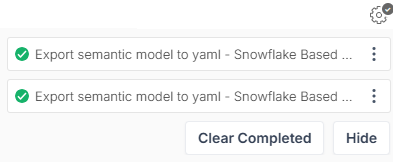
Click the download Operation Files button and specify a file name and location and click Save.
Import YAML Script to a Semantic Model Catalog
You may import YAML into an existing semantic model catalog.
Steps
-
From the More actions menu, select Import from YAML.
-
Specify a file name and location and click Import.
-
Check the operations icon in the header to ensure the import has finished.
Example
Sign in as the Administrator user and open the Snowflake Based Semantic Model Catalog.
From the More actions menu, select Import from YAML.
Specify a file name and location and click Import.
Check the operations icon in the header to ensure the import has finished.
The imported script will replace the contents in the catalog.
Published Semantic Hub Language Reference
Coming soon.
Test a Semantic Model in a Catalog
You may analyze the data to understand how the semantic model will work on the actual data with the Test tab functionality.
Steps
- You should be in the Editor > Test tab in a semantic model catalog.
- Select a Semantic Model using the pull-down.
- Drag and drop fields from the Semantic Model panel into the Query panel to include them in the query results, including:
- Columns - To include the values in the results
- Filters - To filter based upon an expression and the value of a field
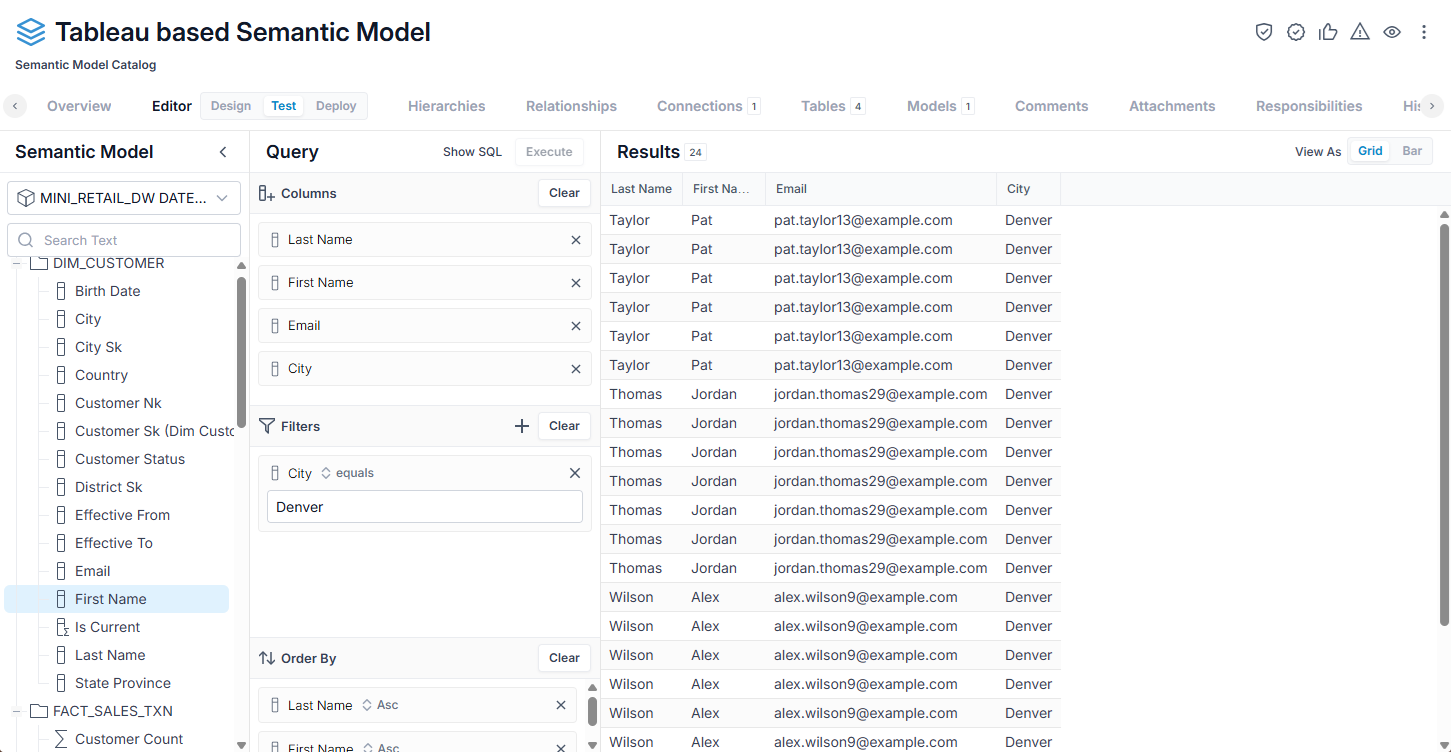
- Order By - To sort the results according to an expression using field values.
- Click Execute to execute the query and show the results in the Results panel
- Click Show SQL to present a dialog with the generated SQL of the query.
- Select the View As option, either:
- Grid - Tabular presentation
- Bar - Bar Chart.
Example
Sign in as the Administrator user and open the Tableau based Semantic Model. Go to the Editor > Test tab.
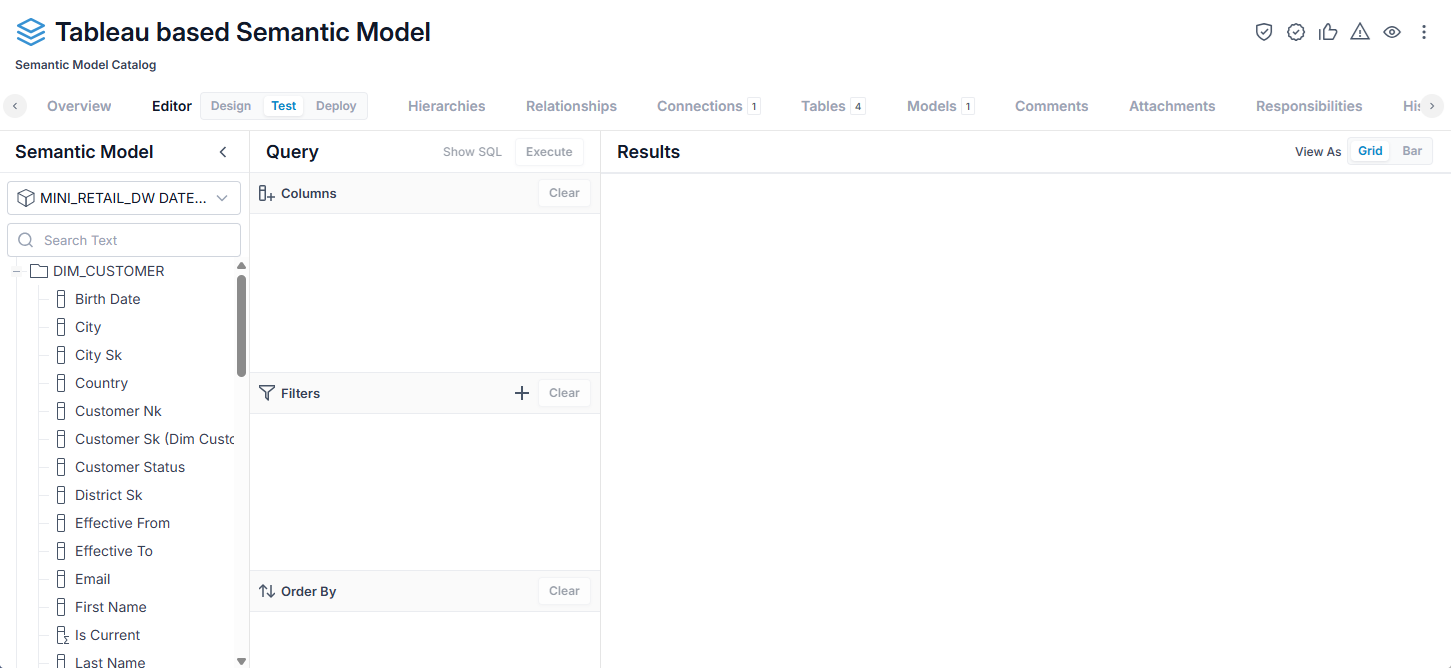
Drag the Last Name, First Name, Email, City, and Is Current fields into the Query > Columns panel.
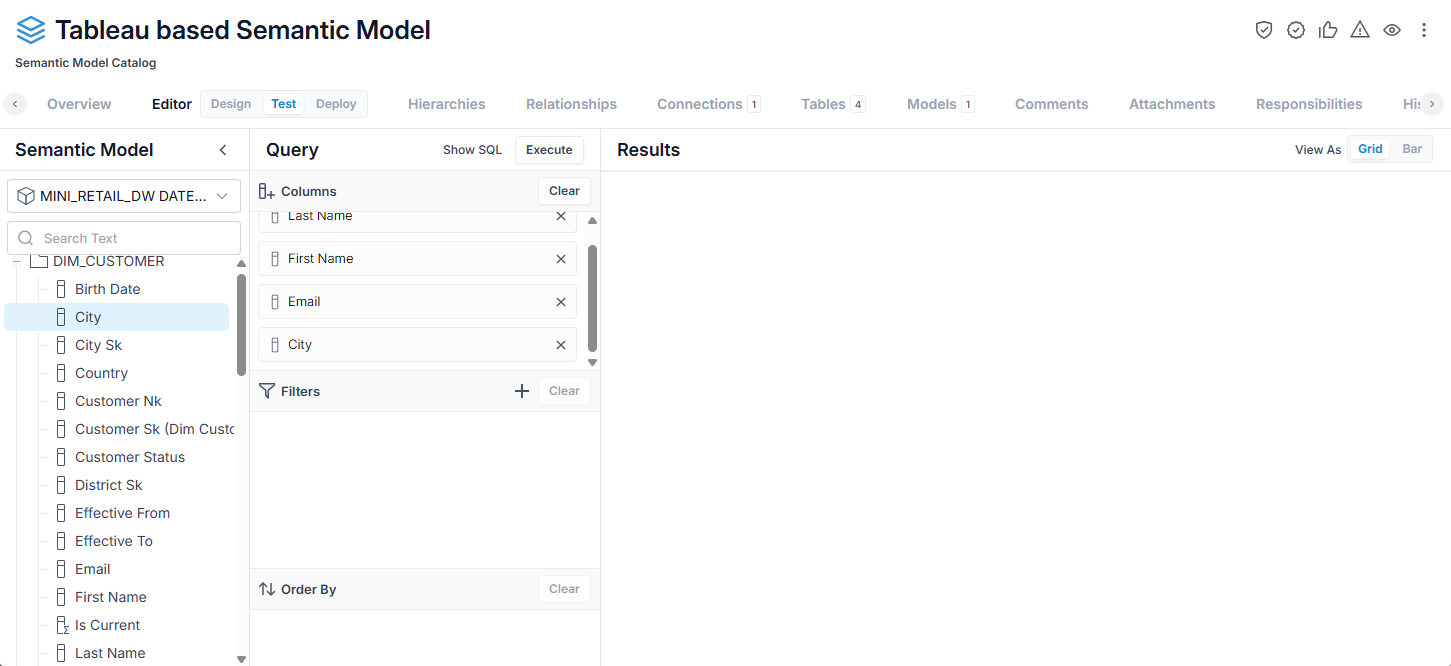
Now click Execute.
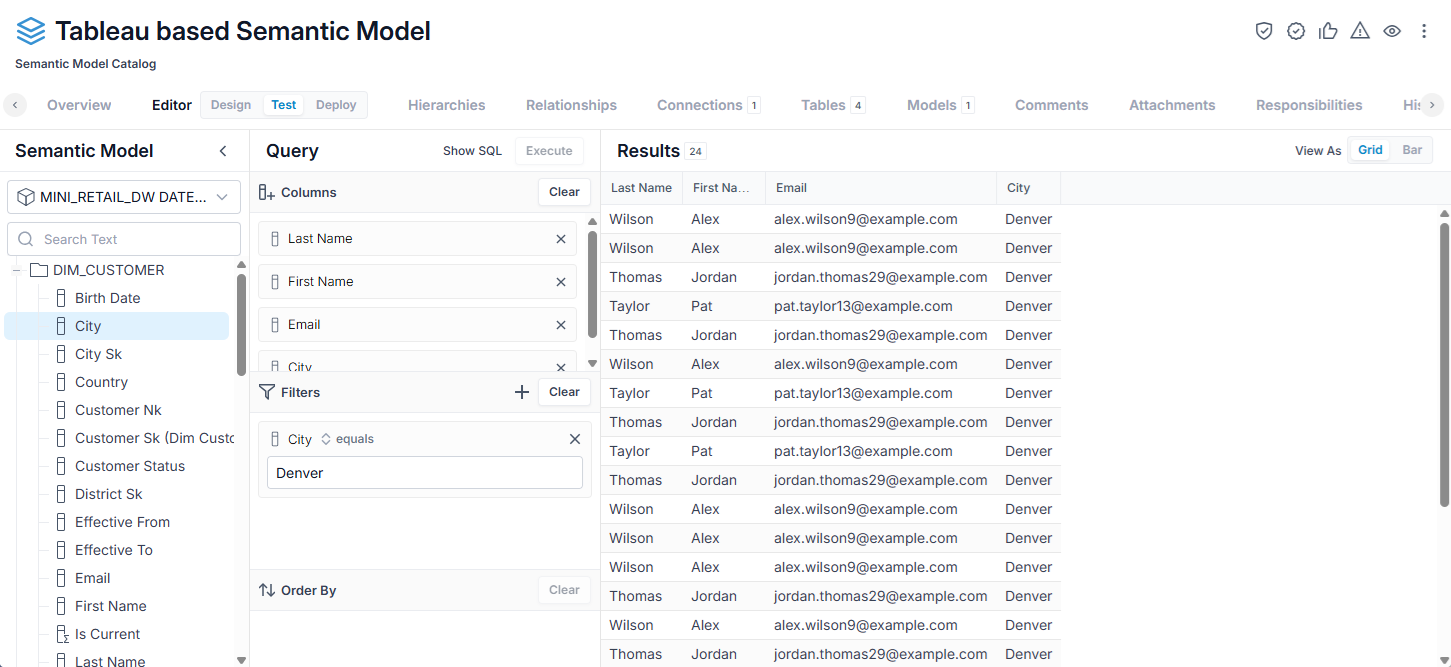
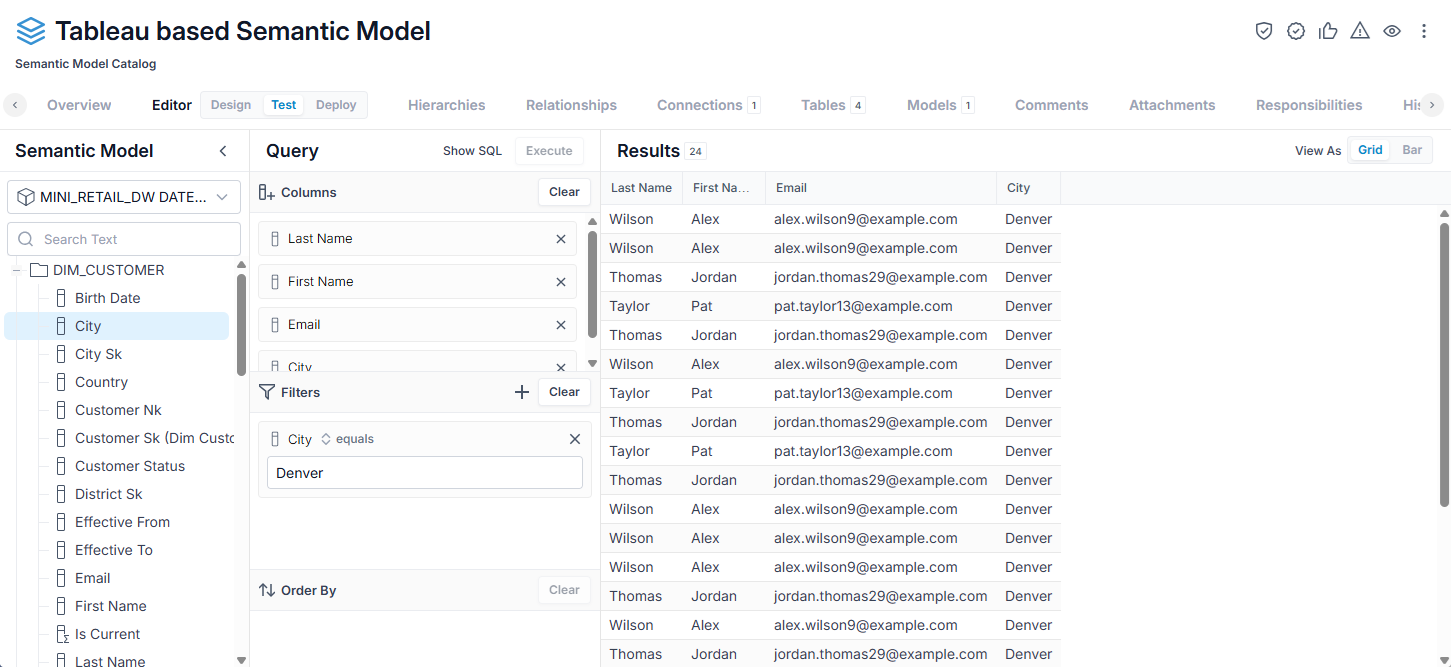
Now drag and drop the City field into the Filters panel, enter "Denver" in the value and click Execute.
Now drag and drop Last Name and then First Name into the Order By panel and click Execute.
Semantic Hub Objects
Semantic Catalog
The metadata repository hosts the Business Logic Layer, implemented using Semantic Catalog models. This critical component houses all the calculations, metrics, and Key Performance Indicators (KPIs) that define an organization's business activities. A primary advantage of this layer is the ability to define company-wide metrics once, centrally. This single definition point eliminates discrepancies across different BI tools, spreadsheets, and embedded applications. It ensures that any changes to a metric's definition only need to be made in one place, propagating consistently throughout the enterprise.
The MM Semantic Layer allows you to define Semantic Catalog models using YAML, UI, or import them from BI tools. Together, they complement each other.
- Productive UI: MM provides an interactive, visual environment for designing and managing semantic models, allowing users to quickly create tables, relationships, hierarchies, metrics, and KPIs without deep technical knowledge of the underlying model definition. It excels at rapid prototyping, immediate validation of Expression logic, and integrating with live datasets for instant feedback, making it ideal for business analysts and model developers who prefer a visual workflow.
- Embrace Code-First and Version Control: Modern data engineering emphasizes defining data assets and logic through code. MM supports the definition and enrichment of semantic models using a text-based, human-readable YAML representation that enables version control, bulk editing, and automated generation or transformation of model definitions. The strengths of the code-based approach lie in collaborative development, DevOps integration (Git-based CI/CD pipelines), and the ability to apply consistent modeling patterns across projects through reusable templates and scripts.
- Automatic Import: MM is a metadata integration solution that allows you to import semantic layer designs from BI and DB tools.
Dimension Joins
Relationships between embedded and snowflake dimension physical tables.
Semantic Physical Tables
Concrete source object (table, view, or SQL query) in a data store. Holds physical and calculated columns. Bound to exactly one Connection.
Semantic Logical Tables
A logical table is the business-facing grouping entity (fact or dimension). A semantic table may contain:
- Dimensions (attributes): typed fields, with optional role-playing variants.
- Facts: numeric calculations with defined aggregation behavior (e.g., additive/semi-additive).
- Hierarchies: ordered paths for drill (e.g., Year → Quarter → Month → Day). Logical objects are sourced from one or more physical columns or expressions.
- Joins: between embedded and snowflake dimension physical tables
Semantic Hub Dimensions
Describes “who/what/where.” Can participate in hierarchies and carry keys/labels, and sort rules.
Semantic Hub Facts
Describes computed amounts or numeric values. Is defined with a default aggregation function.
Semantic Hub Metrics
A calculation defined at the logical grain with an aggregation rule (SUM, AVG, MIN/MAX, COUNT DISTINCT, semi-additive across selected dimensions) and optional filters or time intelligence.
They can combine, evaluate, or manipulate other metrics. For example, you can do simple math operations to combine metrics, or simple comparison operations to return a given metric value when certain conditions are met.
Semantic Hub Hierarchies
Ordered paths for drill (e.g., Year → Quarter → Month → Day). Logical objects are sourced from one or more physical columns or expressions.
Semantic Hub Joins
Between embedded and database dimension physical tables.
Cloning Objects in a Semantic Model Catalog
One may create a copy of datasets, dimensions, facts, and metrics within your model, applying a prefix or suffix to all names and aliasing without recreating everything manually.
Steps
- Sign in as a user with at least the Metadata Management capability object role assignment on the semantic model catalog into which you will import.
-
Open the semantic model catalog which already contains one or more imported contents.
-
Go to the Editor > Design tab.
- Click Start Editing.
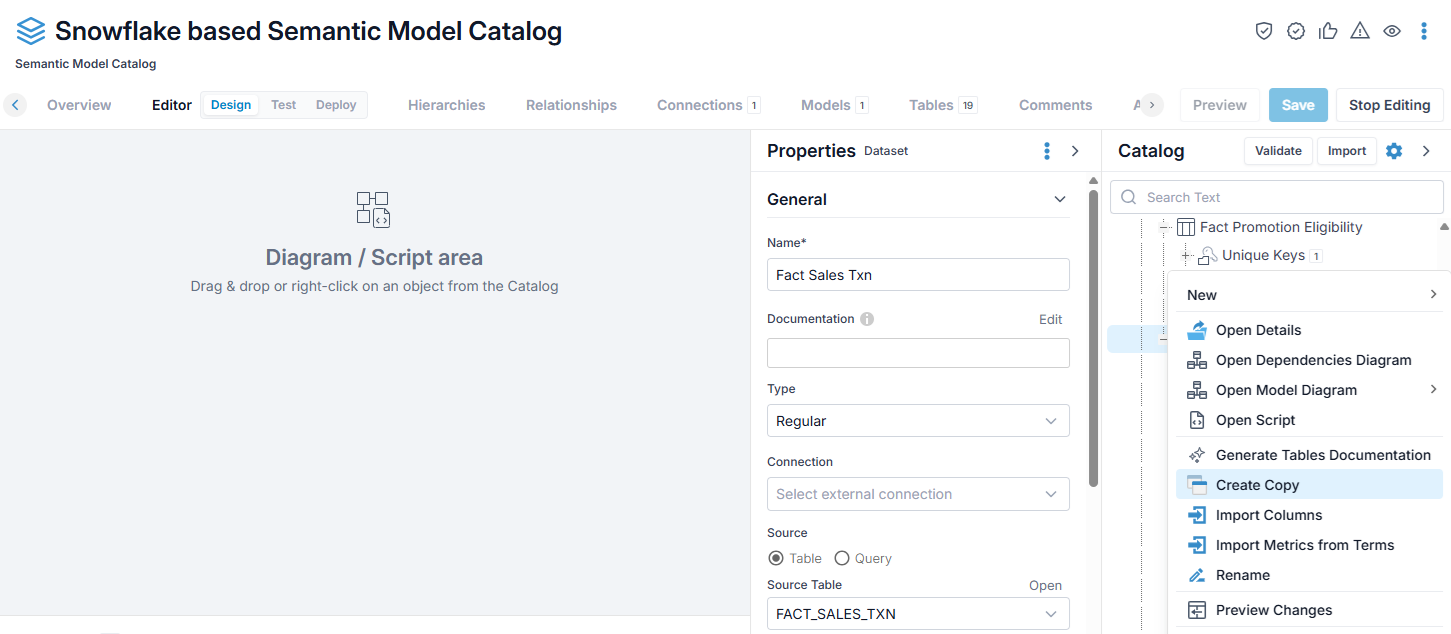
- Right-click an object at most any level of the hierarchy in the Catalog tree panel and select Create Copy.
- You may specify a prefix and/or suffix to add to the cloned objects.
- Click Stop Editing and save.
Example
Sign in as the Administrator user, open the Snowflake based Semantic Model Catalog, go to the Editor > Design tab and click Start Editing.
Then right-click the Fact Sales Txn dataset and select Create Copy.
Specify a prefix and/or suffix to add to the cloned objects.
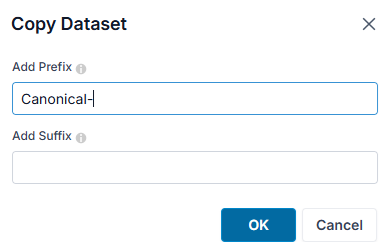
Click OK.
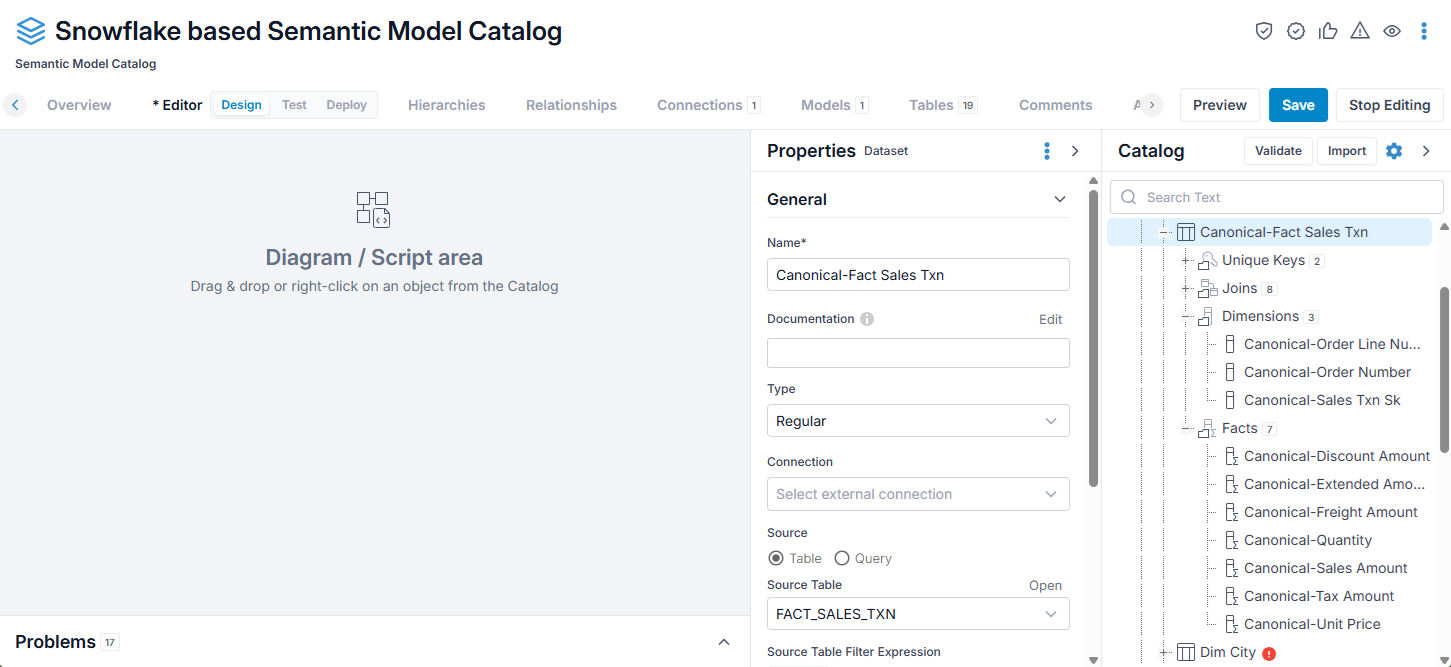
We mow have a canonical for this fact dataset.
Click Stop Editing and save.
Merge and Reconcile Semantic Model Content
We imported one workbook from Tableau . Now, we will import another merging the results into this semantic model catalog.
Steps
- Sign in as a user with at least the Metadata Management capability object role assignment on the semantic model catalog into which you will import.
You must also include in the same configuration an already imported model from the Tableau workbook from which you wish to import.
- Open the semantic model catalog which already contains one or more imported contents.
- Go to the Overview tab.
- Click BI Semantic Layers under Import Sources.
- Select the BI Tool, e.g., Tableau.
- Select the Workbooks or Datasources. This will be from an already imported Tableau model in the same configuration.
If you pick multiples, then the semantic model catalog will be the result of a merge of the two or more workbooks and/or Datasources.
- Click OK.
Example
Sign in as the Administrator user, open the semantic model catalog from earlier, go to the Editor > Design tab. Drag the existing semantic model content root in the Catalog tree into the Diagram / Script area.
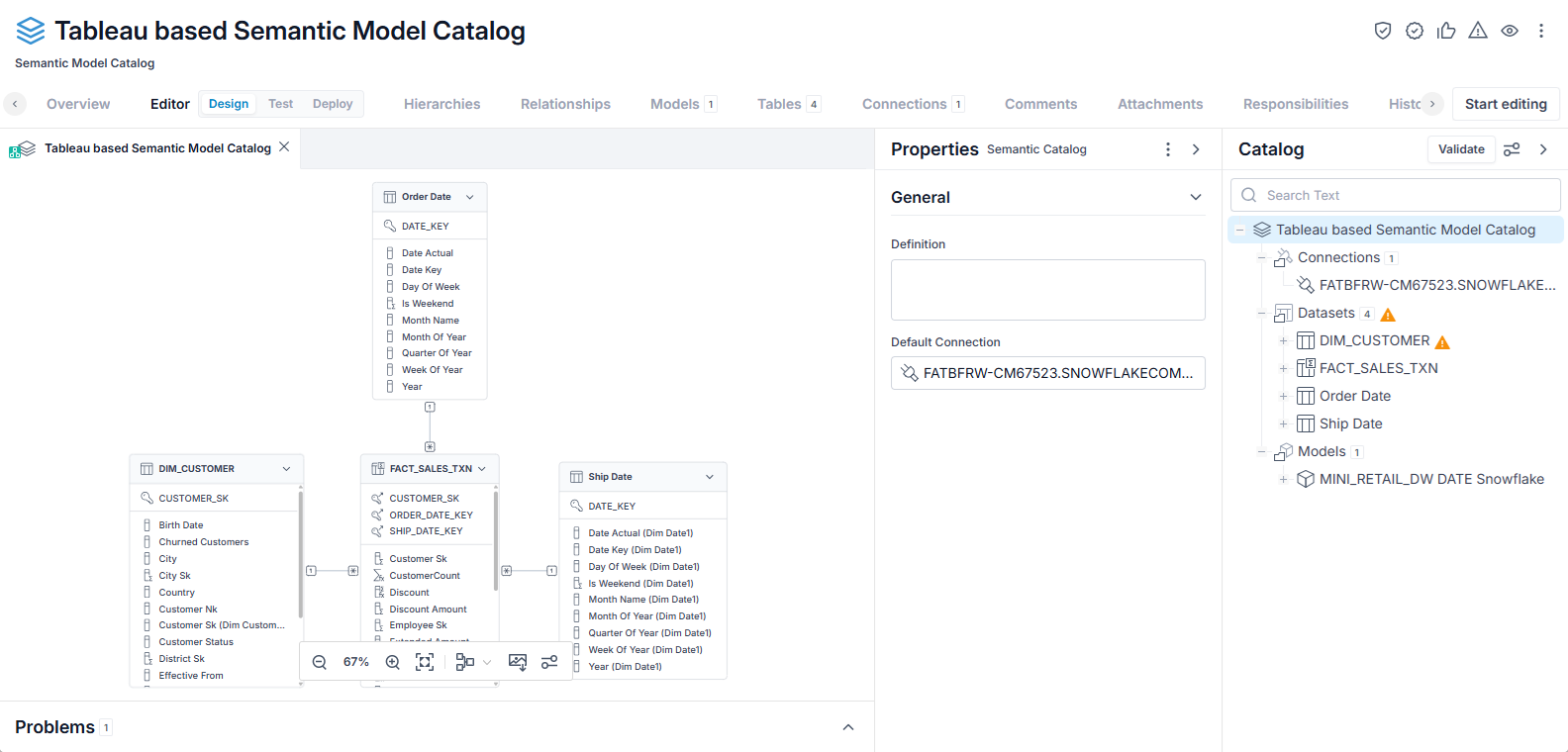
There are four tables around a central fact, as in the original workbook connection model in Tableau.
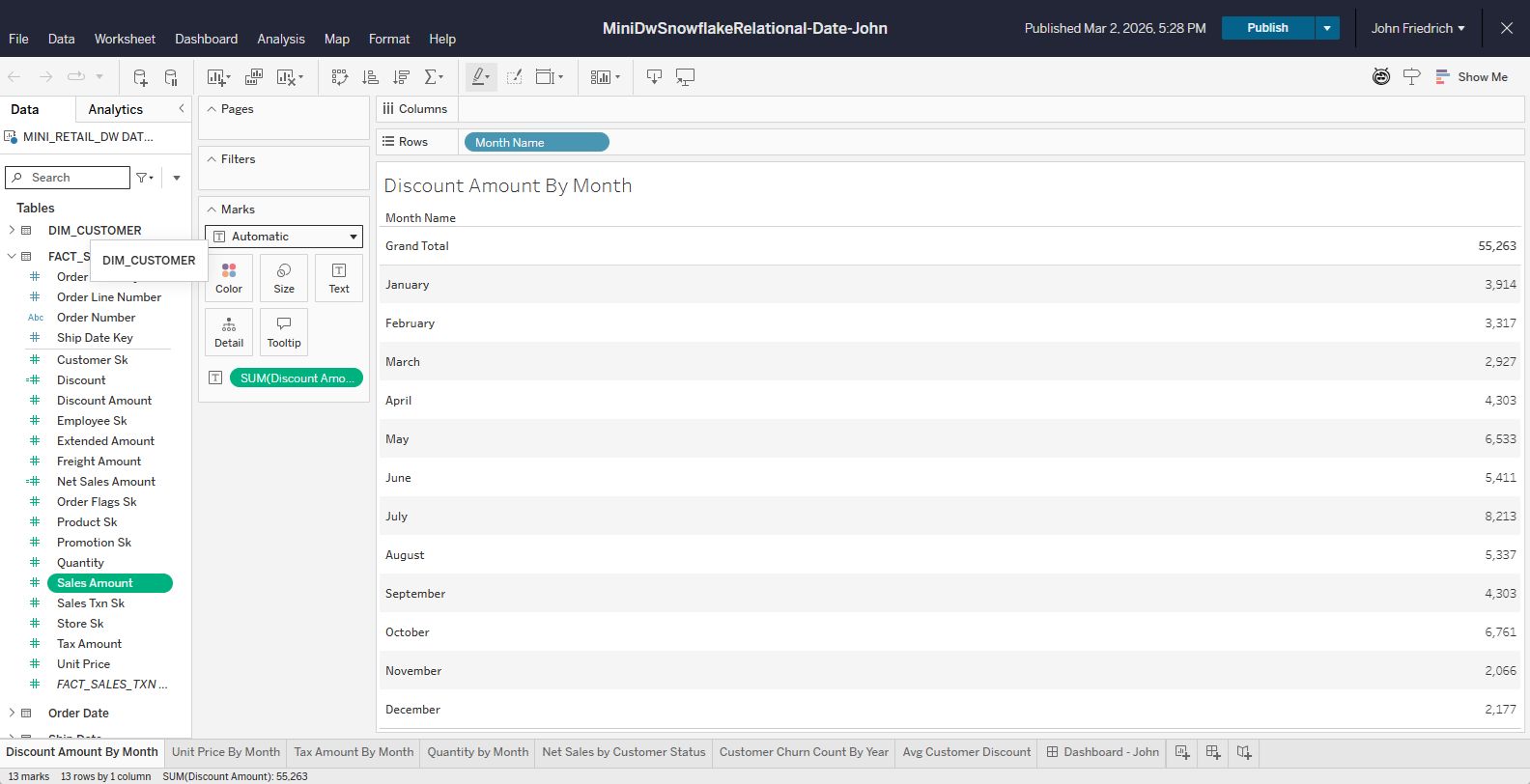
Now, we will import a second workbook. Go to the Overview tab and click BI Semantic Layers under Import Sources. Click the button for Tableau.
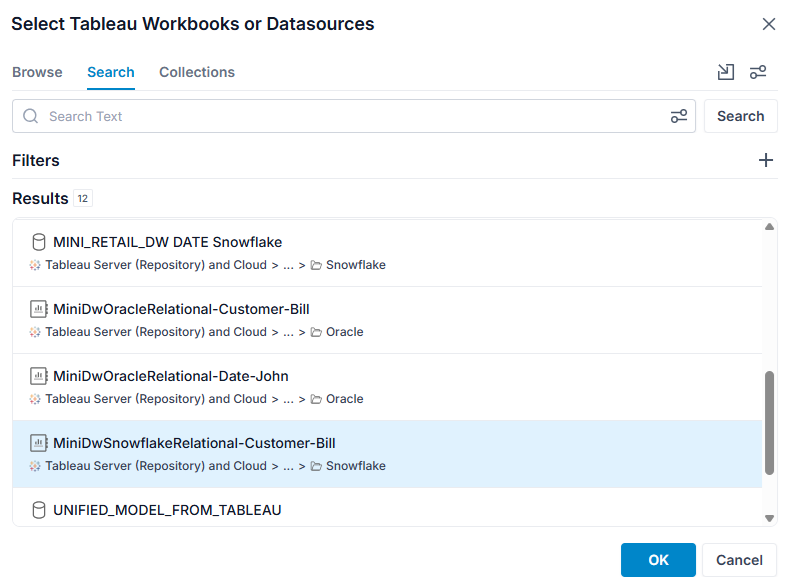
Pick this other workbook and click OK.
Return go to the Editor > Design tab and drag the existing semantic model content root in the Catalog tree into the Diagram / Script area.
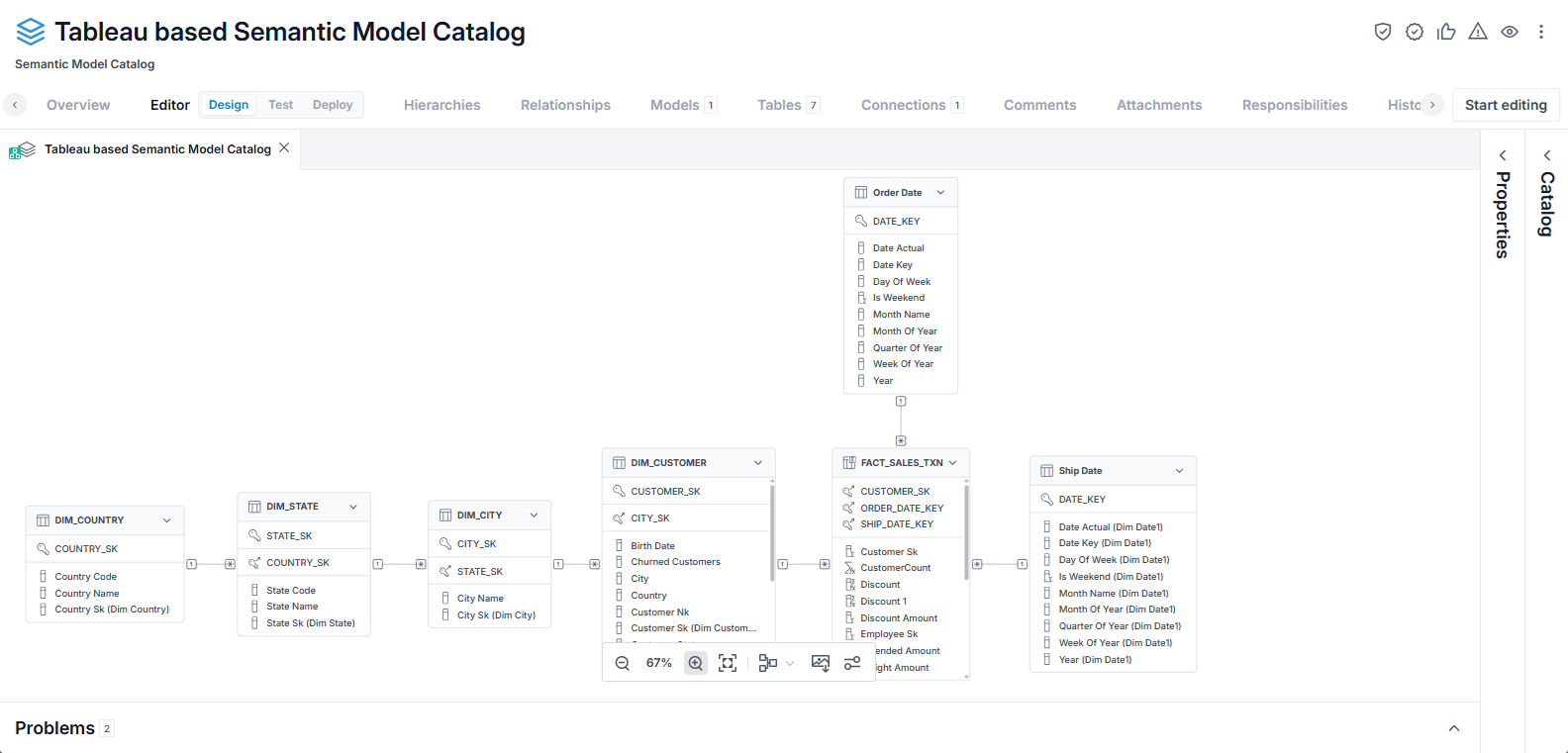
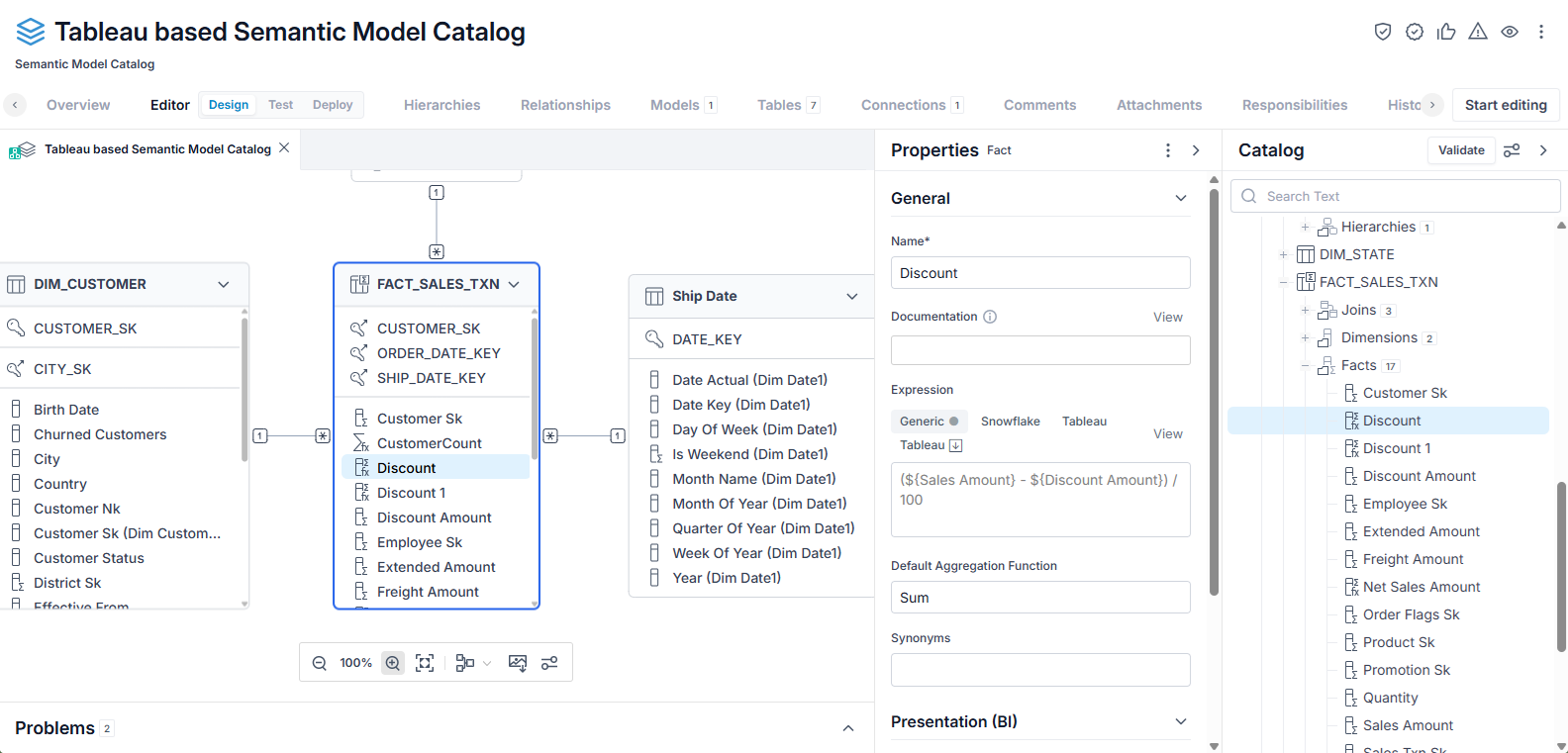
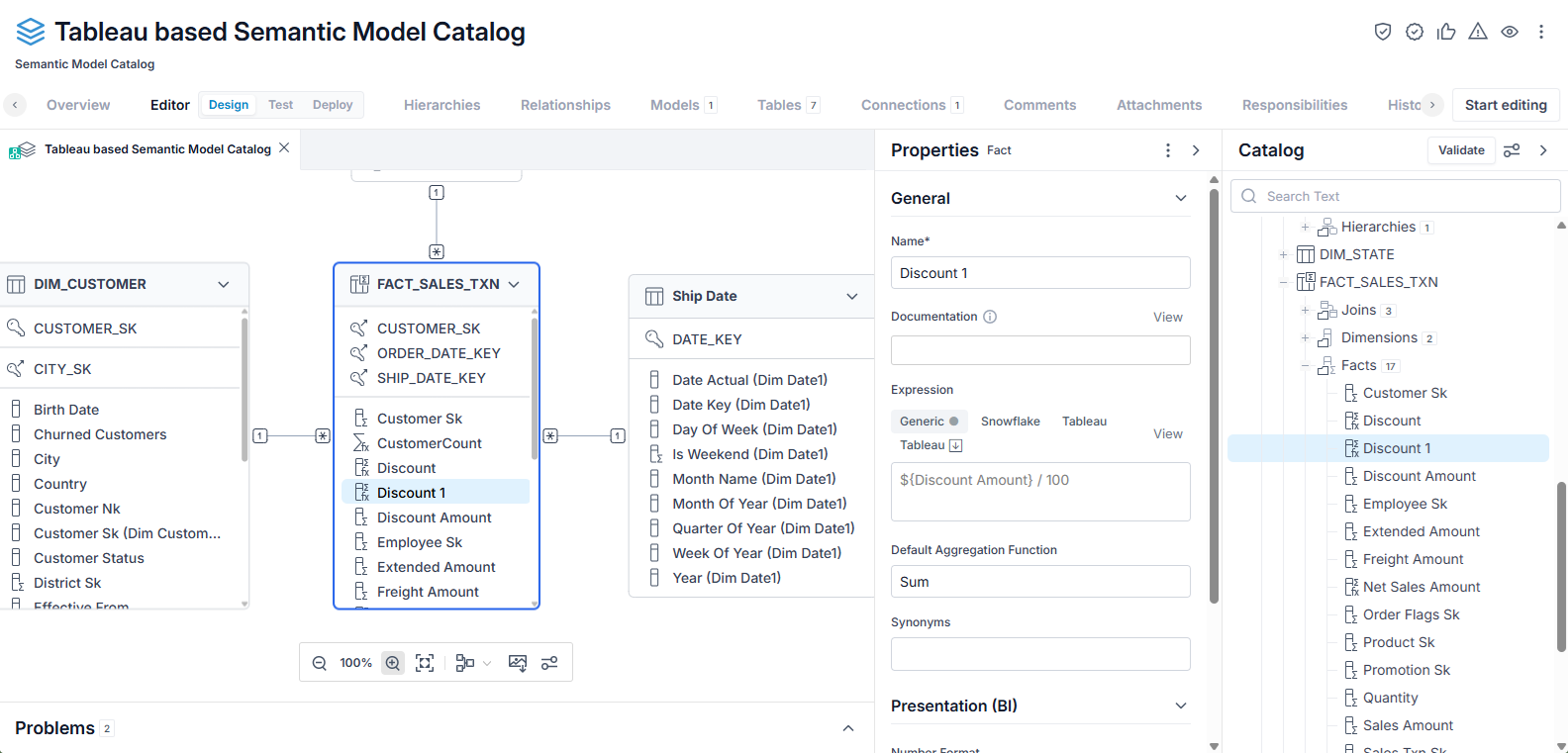
The result of the merge means there are now three additional tables. In addition there are some examples where there are identically named fields that have different properties. In the case of FACT_SALES_TXN.Discount, it exists in each of the two workbooks, but each has a different expression, so the merge created two such fields: Discount and Discount1.
Convert Model Expressions
From our example of importing and merging workbooks from Tableau, we should prepare the semantic model inside for deployment to a database (snowflake) and potential BI Tools.
Once that is done, the validation will likely detect that expressions that are coming from the source tool, in this case Tableau, will not work in all the technologies you want to deploy to. These will show up as warning in the Problems panel.
You may use the AI Provider enabled Convert Model Expressions feature to perform these translations for you.
Steps
-
Sign in as a user with at least the Metadata Management capability object role assignment on the semantic model catalog into which you will import.
-
Open the semantic model catalog which already contains one or more imported contents.
- Prepare the semantic model inside for deployment
- Go to the Editor > Design tab.
- Right-click on a model in the Catalog tree and select Convert Model Expressions.
- The translation runs as a process that may be monitored in Manage > Operations or at the top of the page.
Example
There are two dimensions with missing expressions for one or more of the deployment technologies.
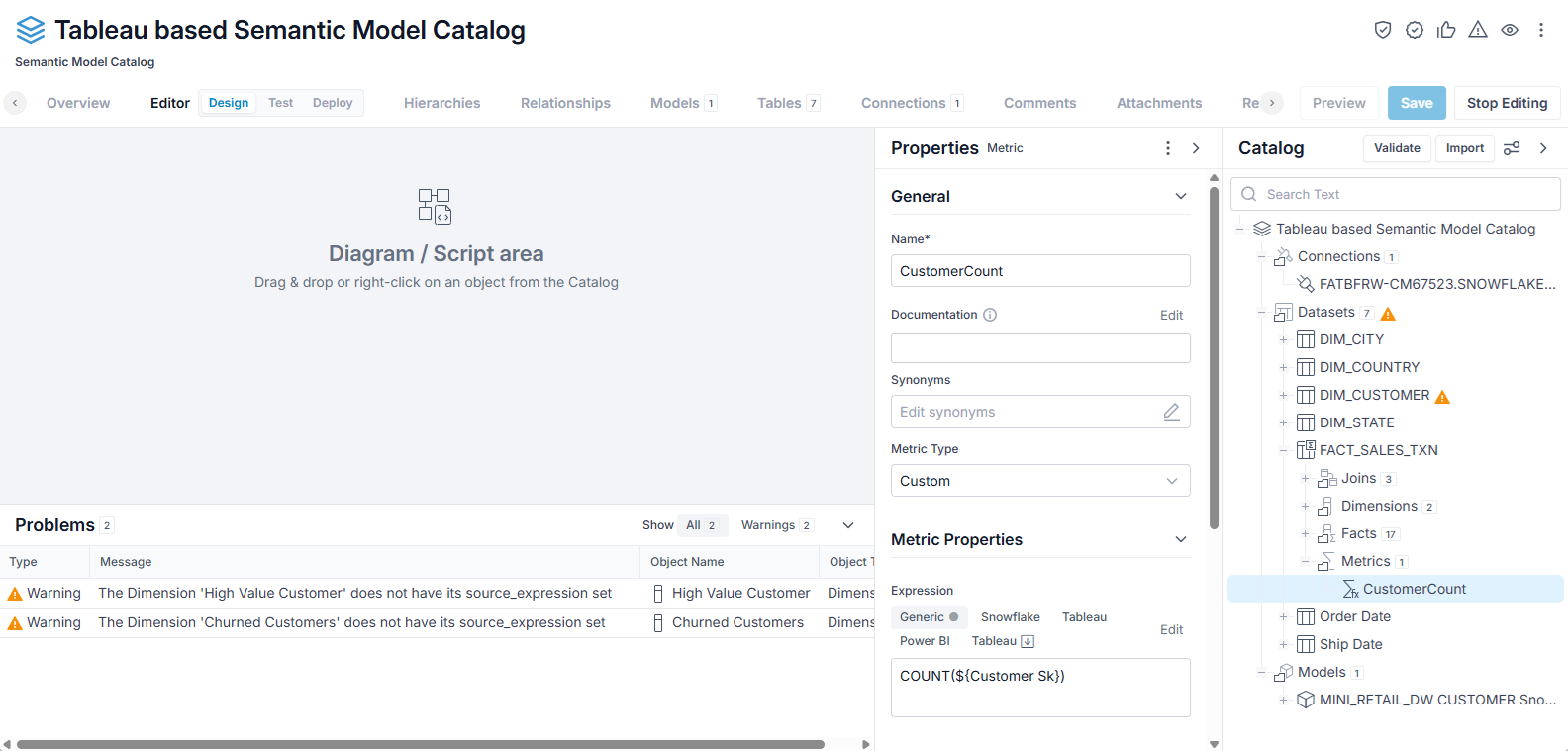
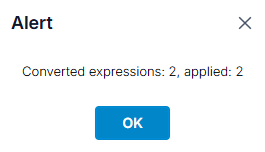
Right-click on a model in the Catalog tree and select Convert Model Expressions.

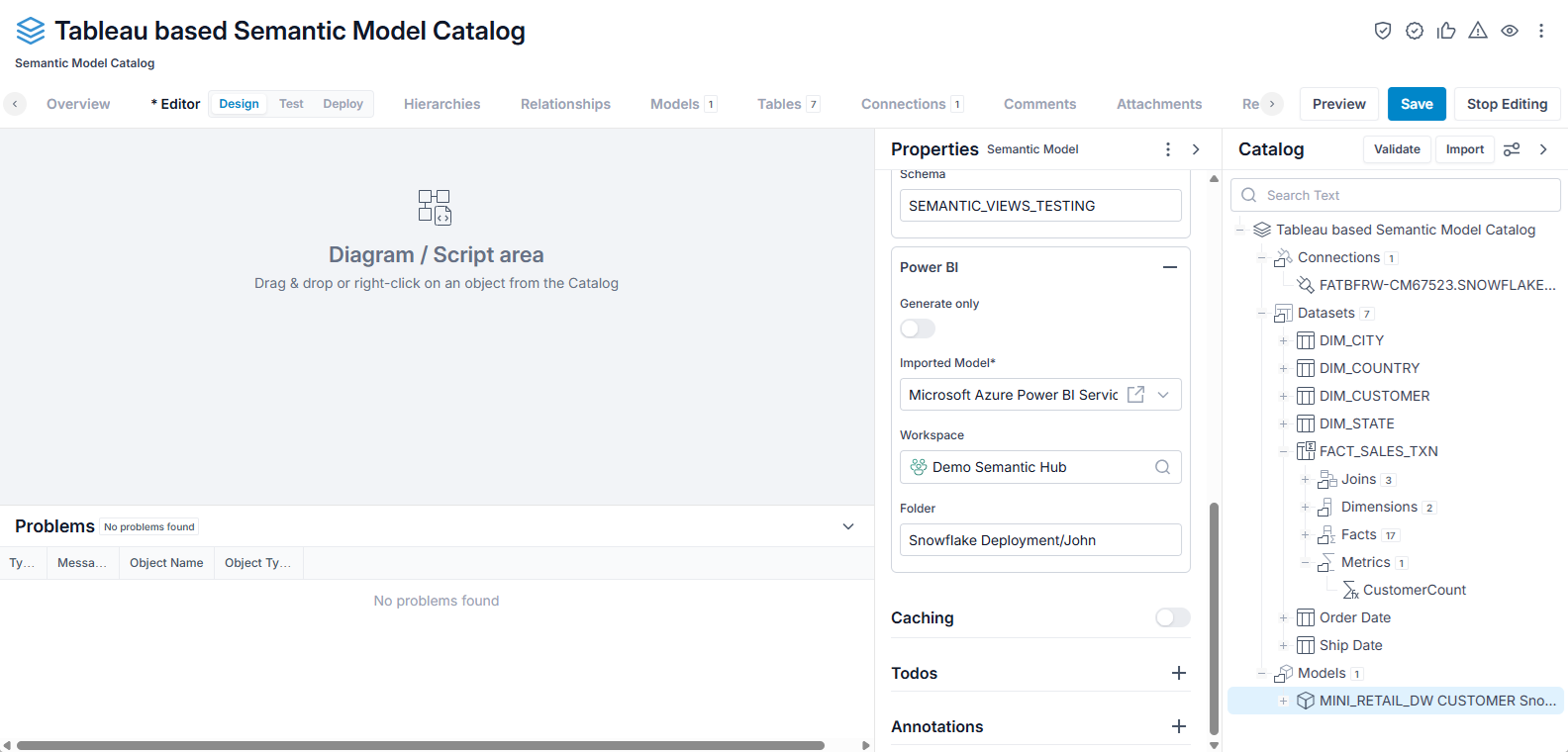
And the Problems panel is now empty.
[test-a-semantic-model-in-a-catalog]: